

Welcome to Concierge360
This guide helps you set up your hotel, step by step. In about an hour you can have your team, your partners and their prices ready, and your first booking on its way to a partner.
What is Concierge360?
Concierge360 is the system for your concierge desk. Your team books restaurants, transfers, spa treatments and activities for guests. Partners confirm by email or in their app, and commissions, payments and reports are calculated for you.

Web app
- Bookings, calendar and guests
- Partners, products and prices
- Commissions, payments and reports
- Works on computer, tablet and phone
Guest pages
- Personal itinerary to approve
- Vouchers with QR code
- Self-booking from the room (QR)
- Optional online payment
Concierge360 Partner app
- Approve or decline in one tap
- Opening hours and busy times
- Chat about each booking
- Settlements and invoices
Roles in Concierge360
Each person signs in with their own email. What they see depends on their role.
Some features are switched on per hotel by the Concierge360 team: itineraries, guest self-booking, PMS integrations, symPOSium, the Partner app and change requests. Sections for these are marked On request.
What you need
Have these ready. You can add more later, nothing is final.
- Your manager login (email and password) from the Concierge360 team.
- Hotel details: name, address, phone, VAT number and your logo.
- Your team: name and email of each concierge, and their commission percentage.
- Your partners: business name, email, phone and the commission you agreed.
- Their services and prices: what you sell, the price to the guest and, if different, the price you pay the partner.
- Optional: your PMS details (for in-house guests and room charges) and payment provider keys (Stripe or Viva).
The partner's email matters most: booking requests, approve/decline links and the Partner app all use it.
Sign in
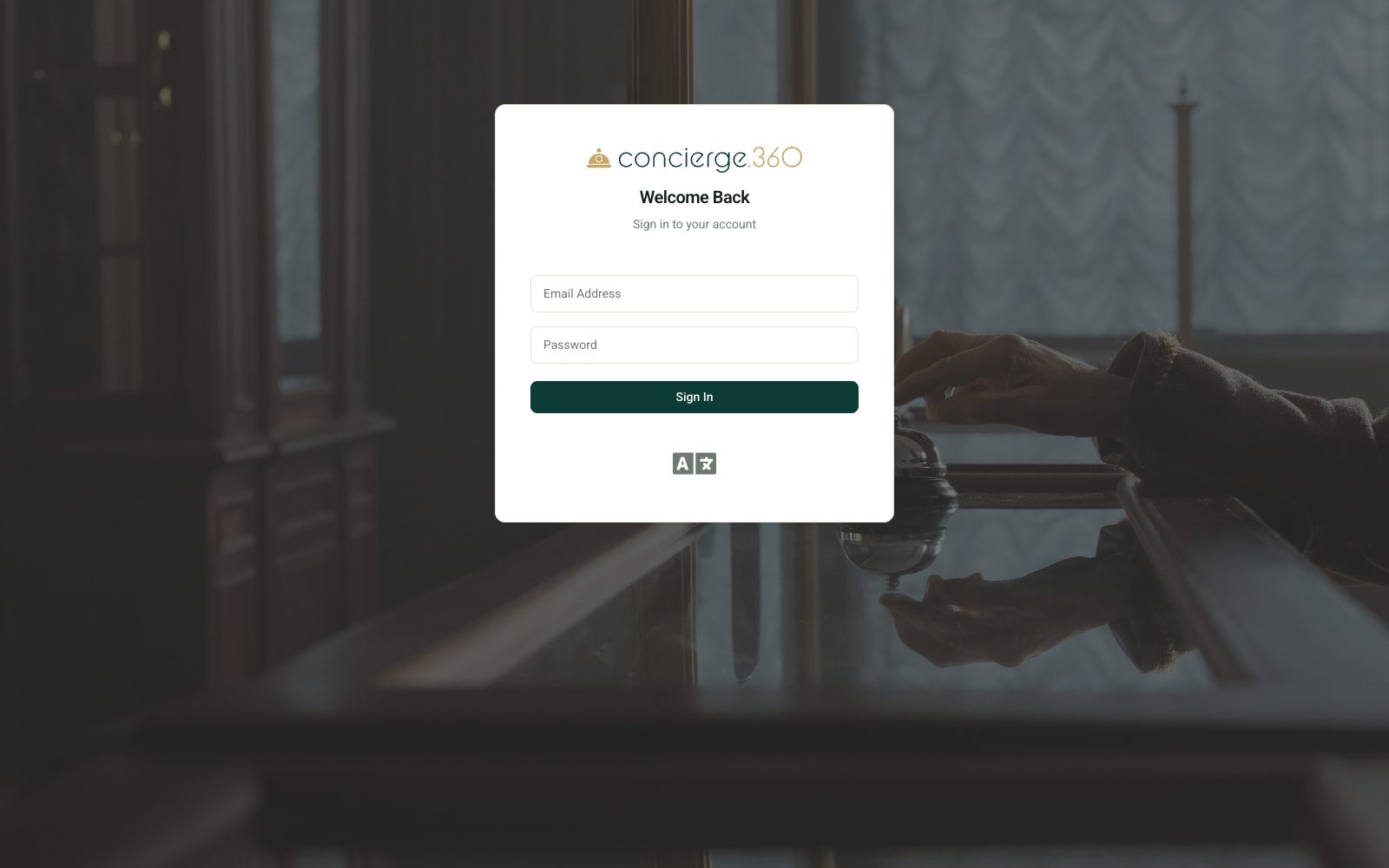
Open the address you received from the Concierge360 team and sign in with your email and password.
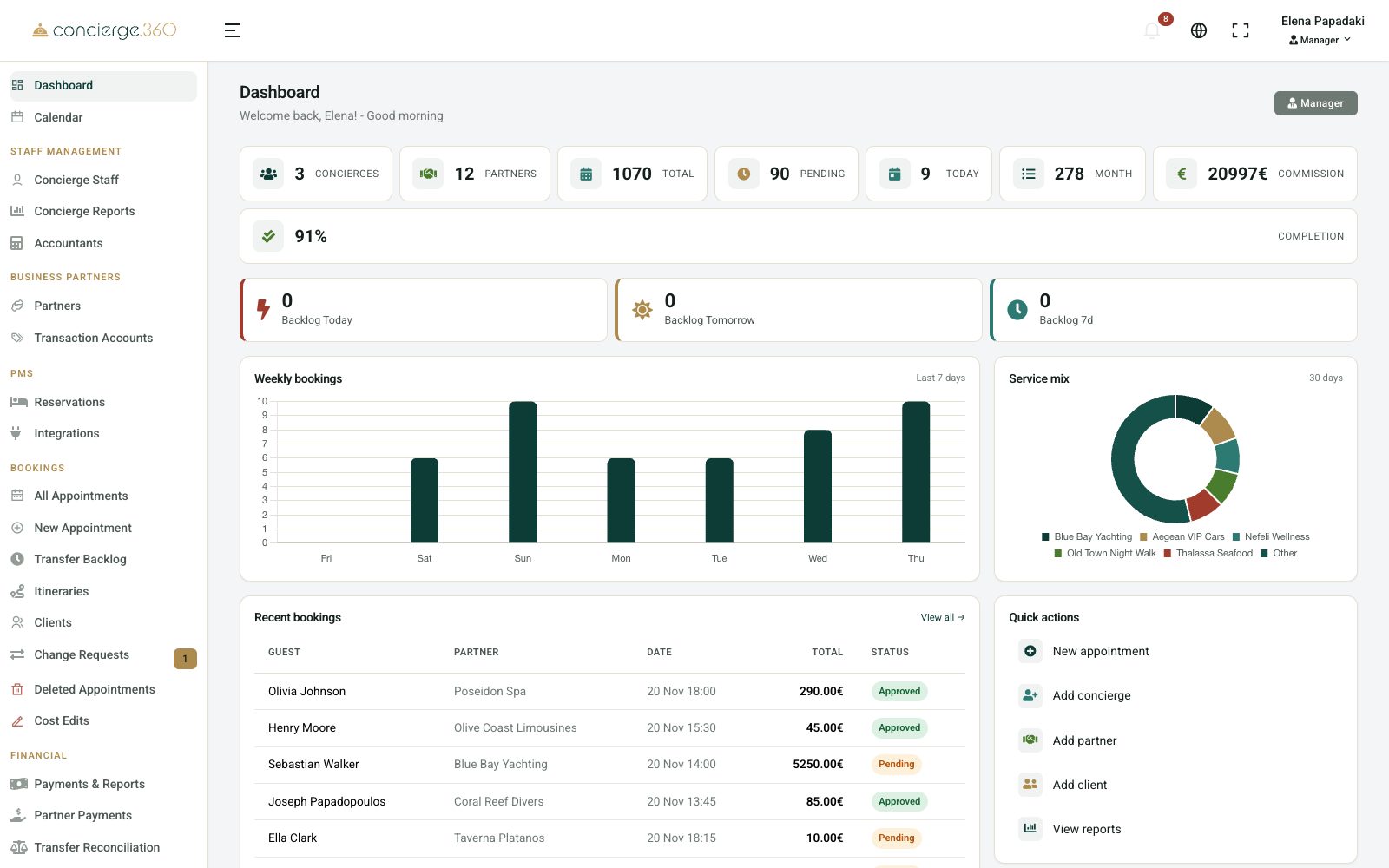
Your dashboard
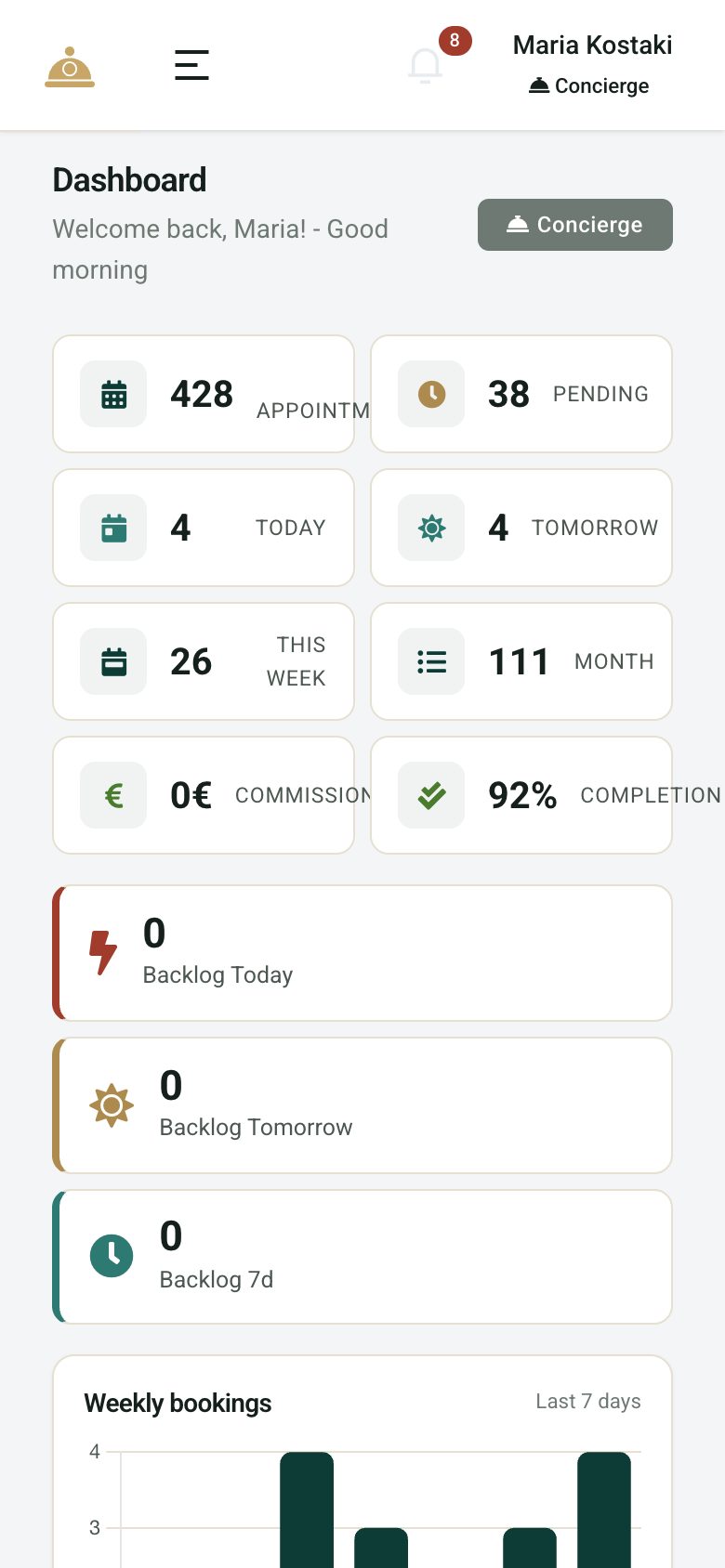
After signing in you land on the Dashboard: bookings today, pending answers, weekly bookings and quick actions.
A new hotel sees a Getting Started card with three steps: add concierges, add partners, add clients. It disappears when all three are done.
Change your password
Go to Settings›Profile.
- Type a New Password and Confirm Password.
- Click Update Password.
Hotel settings
Your hotel details appear on emails to guests and partners. Set them once.
A. Company details
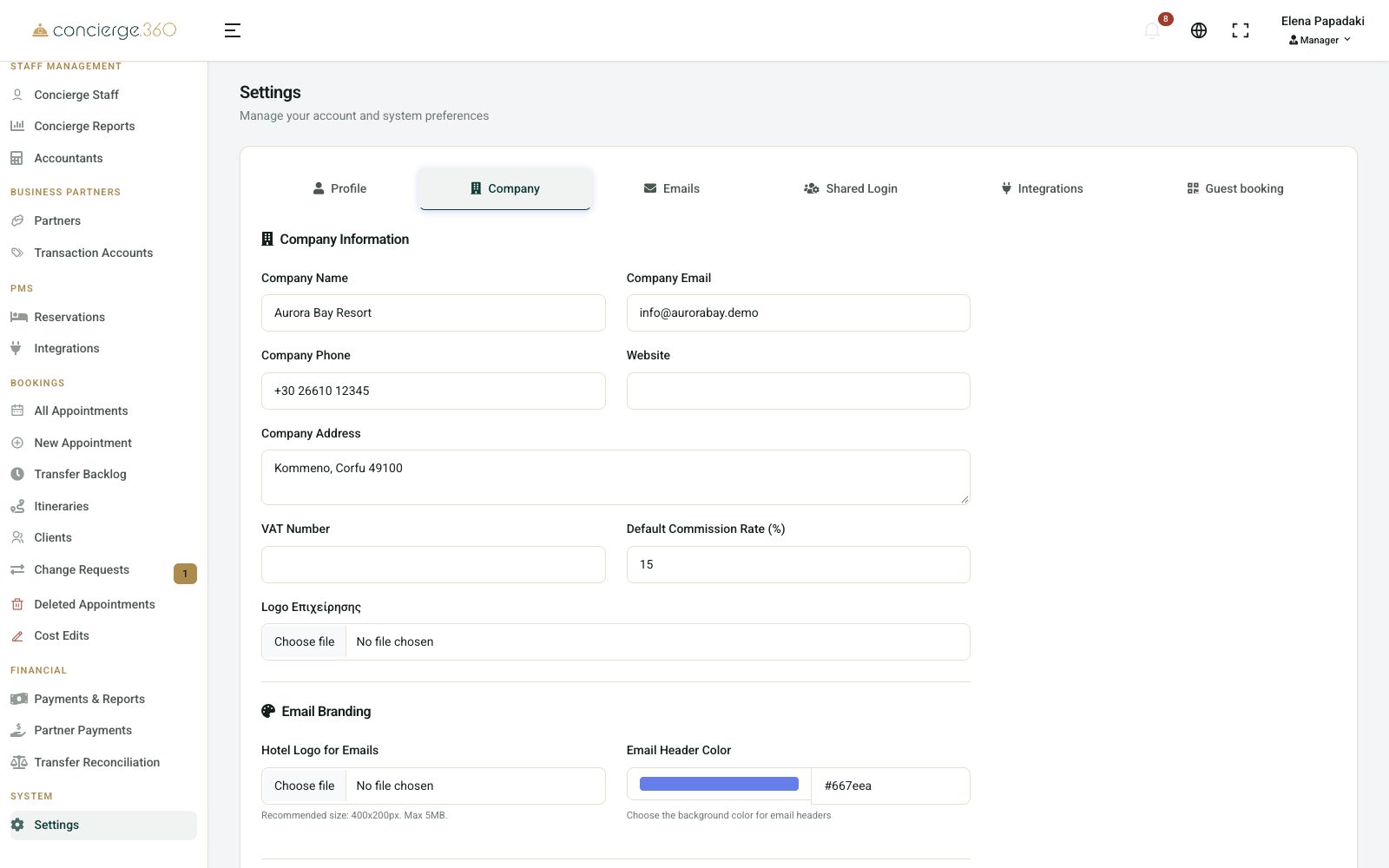
Go to Settings›Company.
- Fill in Company Name, Company Email, Company Phone, Company Address and VAT Number.
- Set the Default Commission Rate (%). New partners start with it.
- Upload your Company Logo.
- Under Email Branding, add the Hotel Logo for Emails (about 400×200 px) and pick the Email Header Color.
- Click Save Company Settings.
B. Appointment settings
On the same tab:
- Auto-complete past appointments: approved bookings are marked completed after their time. Transfer.360 transfers are completed only when Transfer.360 reports the trip finished.
- When a partner is closed: for partners using the Partner app, choose to warn the concierge or to block the booking.
C. Emails
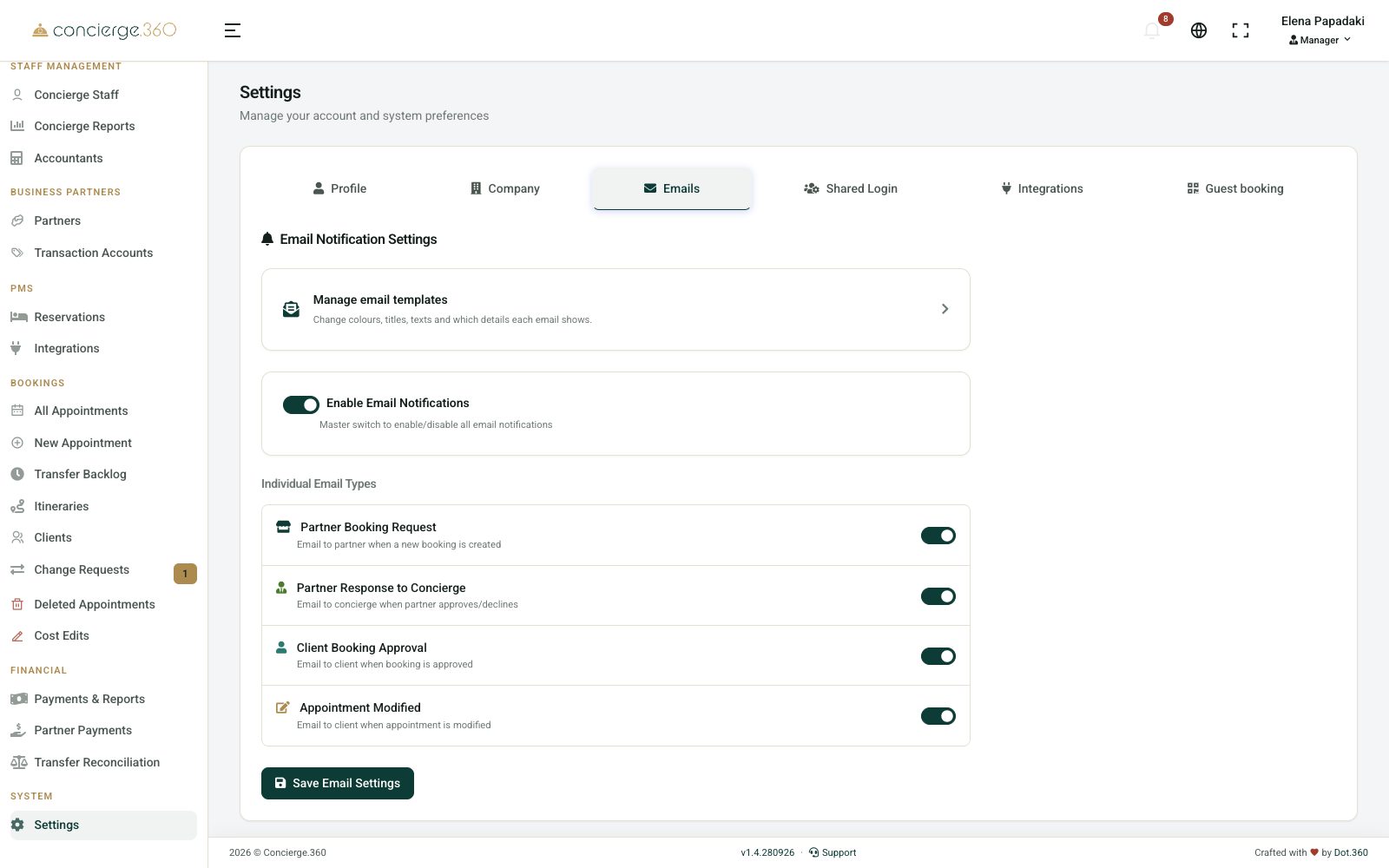
In Settings›Emails keep Enable Email Notifications on. Each type can be switched off on its own:
- Partner Booking Request: the partner gets the booking with Approve and Decline buttons.
- Partner Response to Concierge: you hear back when they answer.
- Client Booking Approval: the guest gets a confirmation.
- Appointment Modified: everyone hears about changes.
Click Manage email templates to change the wording, then Save Email Settings.
D. Shared login (optional)
One computer at the desk, many concierges? In Settings›Shared Login everyone signs in with one shared email and password, then types their own 4-digit PIN. Bookings are still credited to the right person.
- Turn on Enable Shared Login Mode and set the shared email and password.
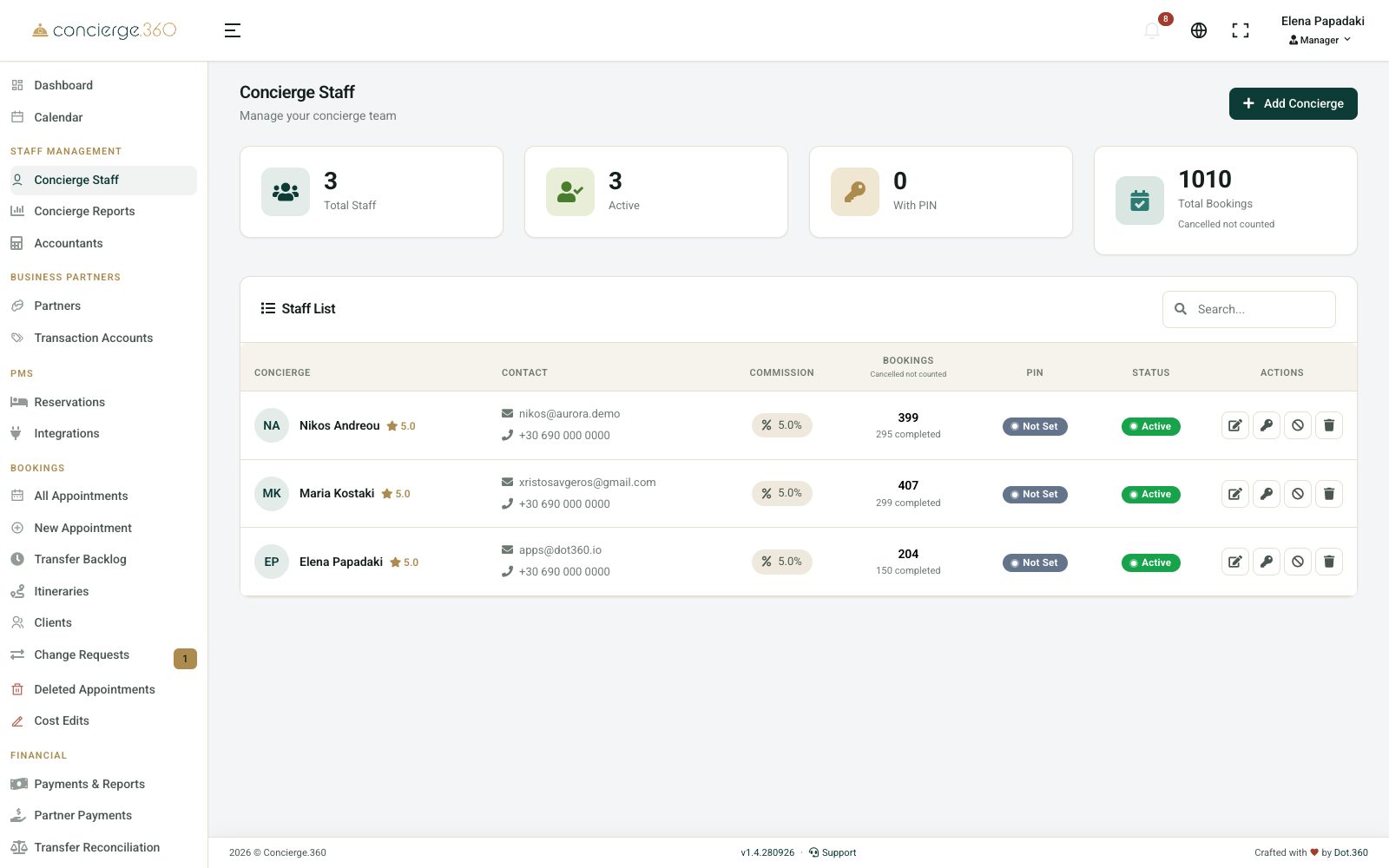
- Create a PIN for each concierge with Generate PIN on the Concierge Staff page.
Your team
Add every concierge with their own email, so each booking and commission is credited to the right person.
Add a concierge
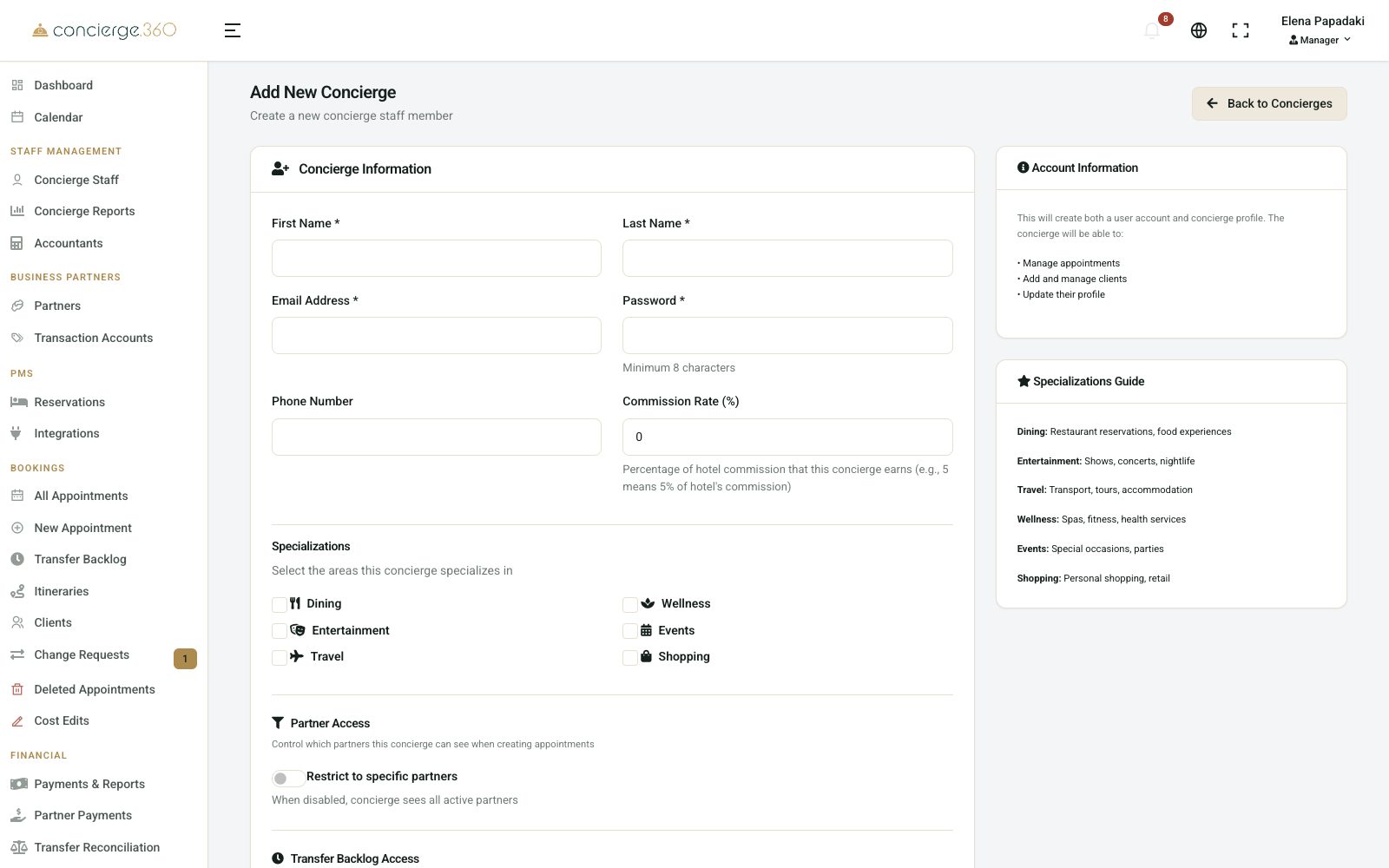
Go to Staff Management›Concierge Staff and click Add Concierge.
- Type First Name, Last Name and Email Address.
- Choose a Password (at least 8 characters) and give it to the concierge.
- Set the Commission Rate (%): the concierge's share of the hotel's commission (5 means 5% of it).
- Optional: tick Specializations, Restrict to specific partners or Allow access to Transfer Backlog.
- Click Create Concierge.
Accountants and directors
An accountant approves partner settlements. Add one in Staff Management›Accountants with Add Accountant. If you have none, you can settle yourself.
Directors and chief accountants work across several hotels. Ask the Concierge360 team to create them.
Partner categories
Categories group your partners (Restaurant, Transfer, Spa, Activities) in lists, reports and the guest catalog. Create them before adding partners.
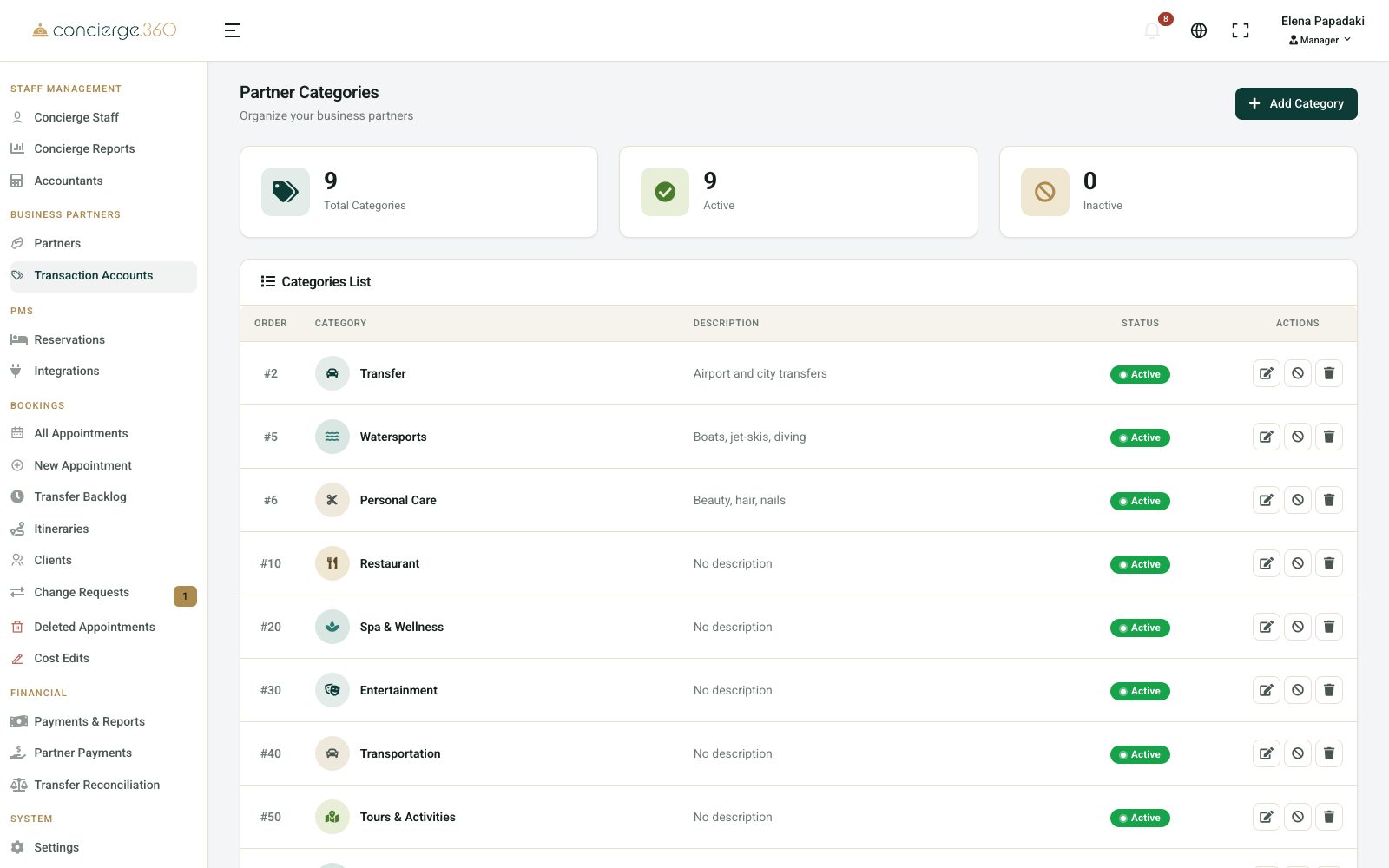
Go to Business Partners›Transaction Accounts and click Add Category.
- Type the Category Name.
- Pick an Icon and a Color. The Preview shows the result.
- Use Sort Order to put the most used first (lower numbers first).
- Click Create Category.
On the partner form this field is called Transaction Account.
Partners
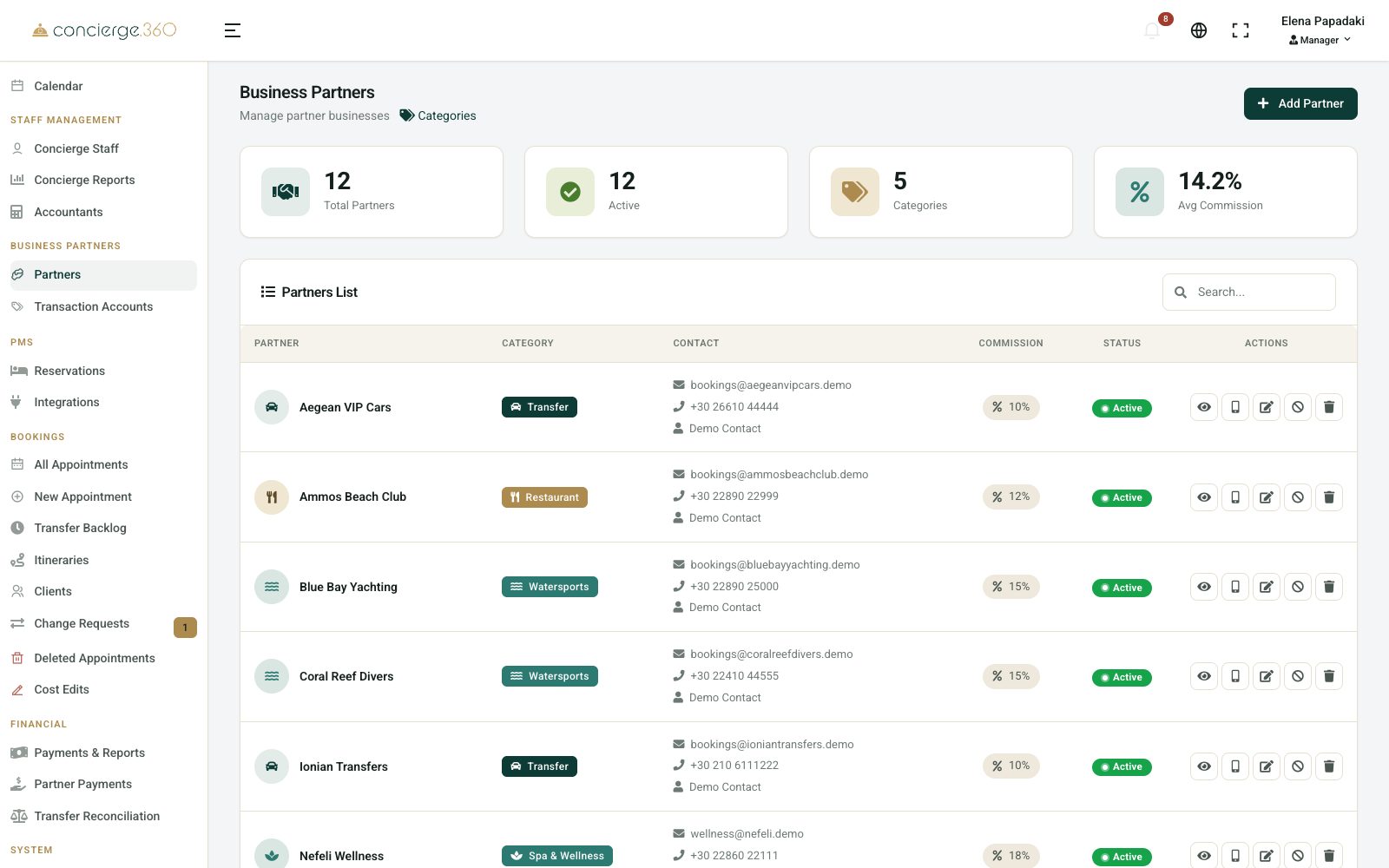
Partners are the businesses you book for guests. Each booking is sent to the partner's email (or their app) for approval.
Add a partner
Go to Business Partners›Partners and click Add Partner.
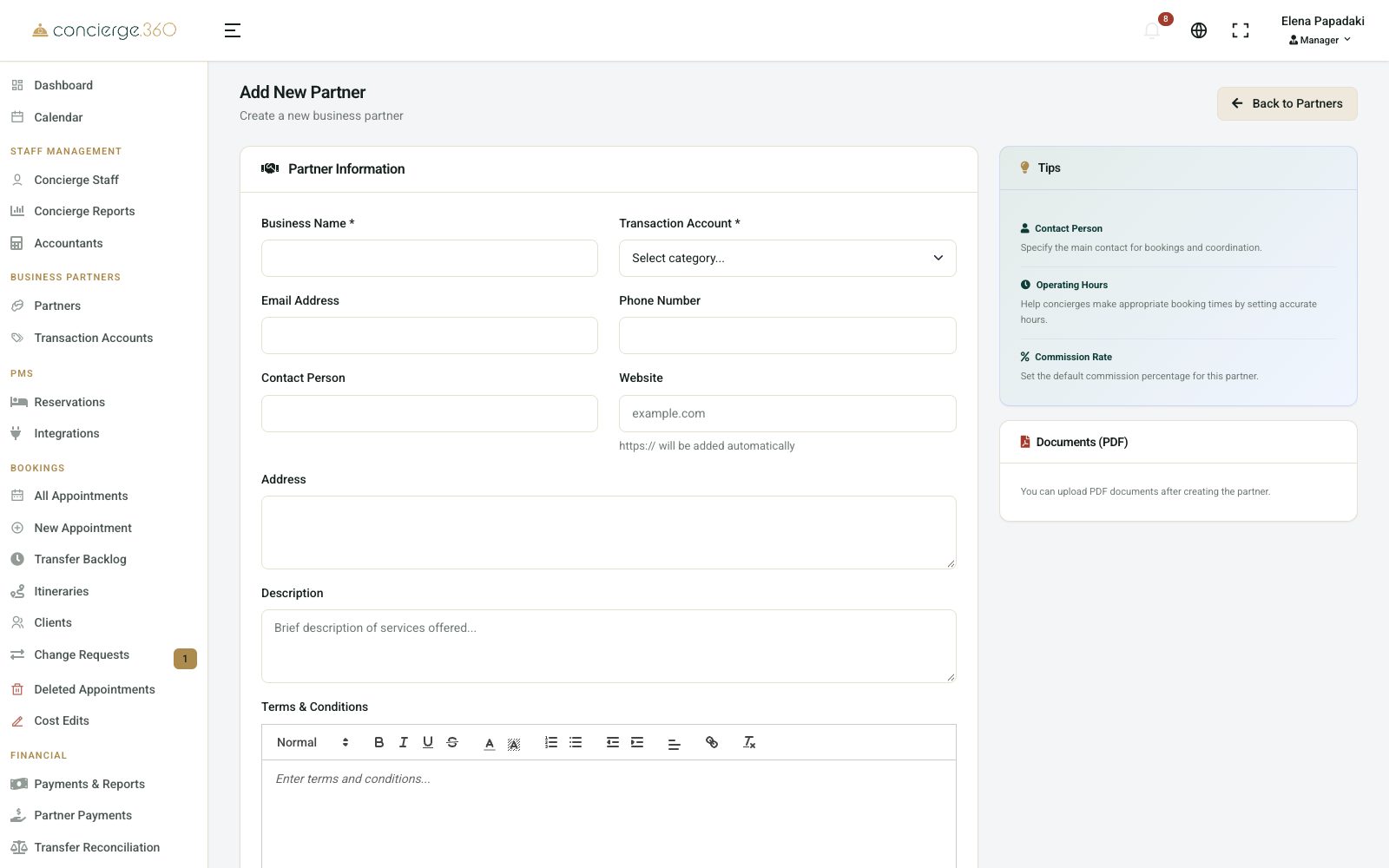
- Type the Business Name and choose the Transaction Account (category).
- Add the Email Address, Phone Number and Contact Person.
- Set the Default Commission Rate (%) you agreed with them.
- Optional: address, description, terms and opening hours.
- Add their services in Products (step 6).
- Click Create Partner.
Without an email, the partner gets no booking requests. Always add it.
Transport partners
For taxis and transfer companies, under Transportation Settings:
- Tick Is Transportation Company. Bookings then ask for pickup, drop-off, flight and luggage.
- Ask for payment method on bookings: Prepaid or Pay to driver.
- In-house transportation if the hotel owns the cars.
- This partner uses Transfer.360: bookings go straight into their Transfer.360 system (see Optional features).
Products and prices
Products are what the guest can book from a partner: a menu, a massage, a boat trip, a transfer. Prices and commission are calculated from them.
Add a product
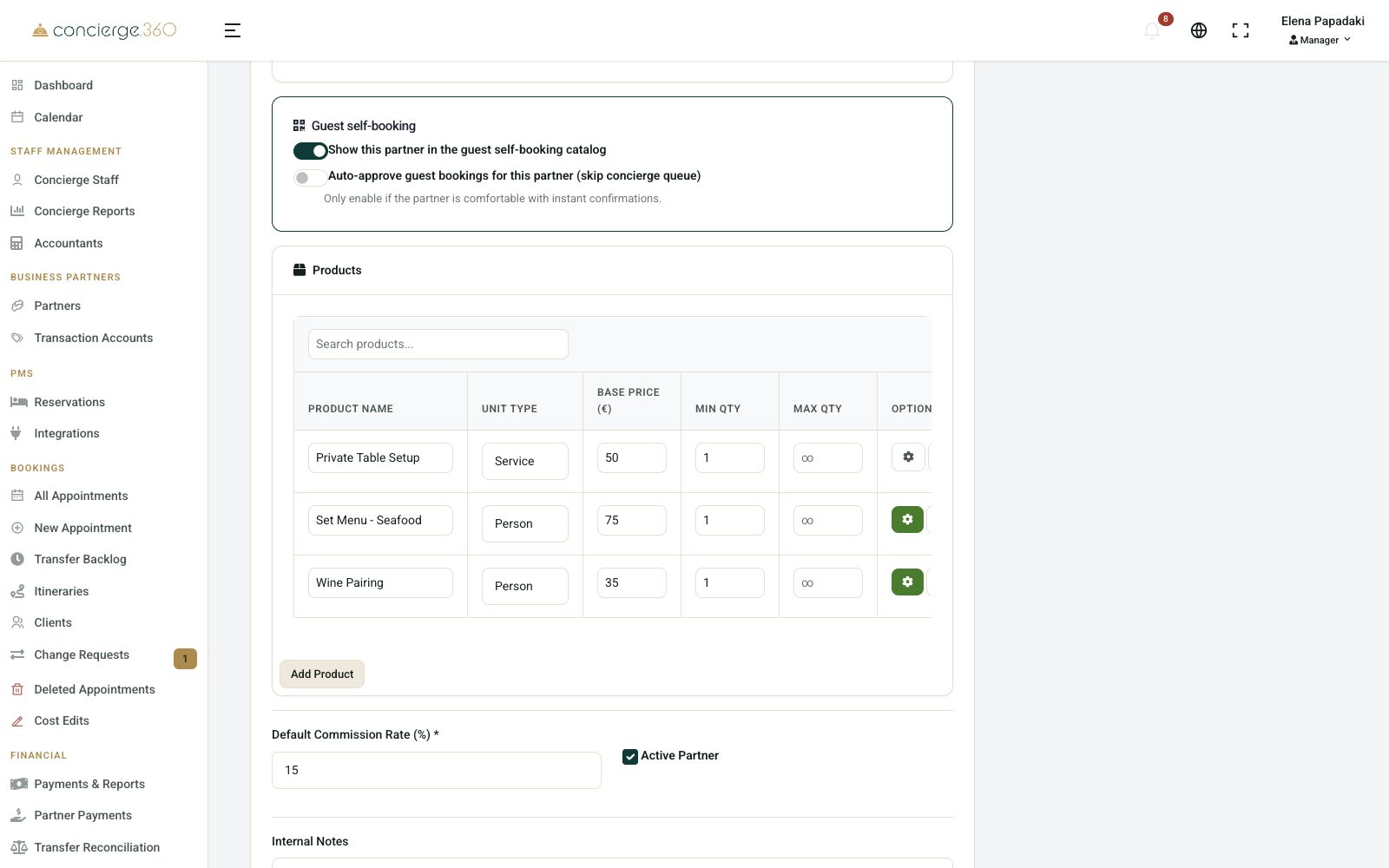
Open the partner with Edit (or while creating it), section Products.
- Click Add Product.
- Type the Product Name and choose the Unit Type (Person, Hour, Service, Night…).
- Type the Base Price (€) the guest pays per unit, and Min Qty / Max Qty.
- Optional: the cog opens Product Options (extra cost, kid price, advanced pricing).
- Click Update Partner to save.
This table is in English for now, also when the app is in Greek.
How commission works
- Simple price: commission = booking total × the partner's commission %.
- Advanced pricing (in Product Options): set the Partner Cost (what you pay them) and the Selling Price (what the guest pays). When prepaid, the hotel keeps the difference.
- Guest pays the partner directly (cash or card to the driver/partner): commission = partner cost × commission %.
- Free (no commission) on a booking sets its commission to 0.
Kid Price works for products with unit type Person.
Your first booking
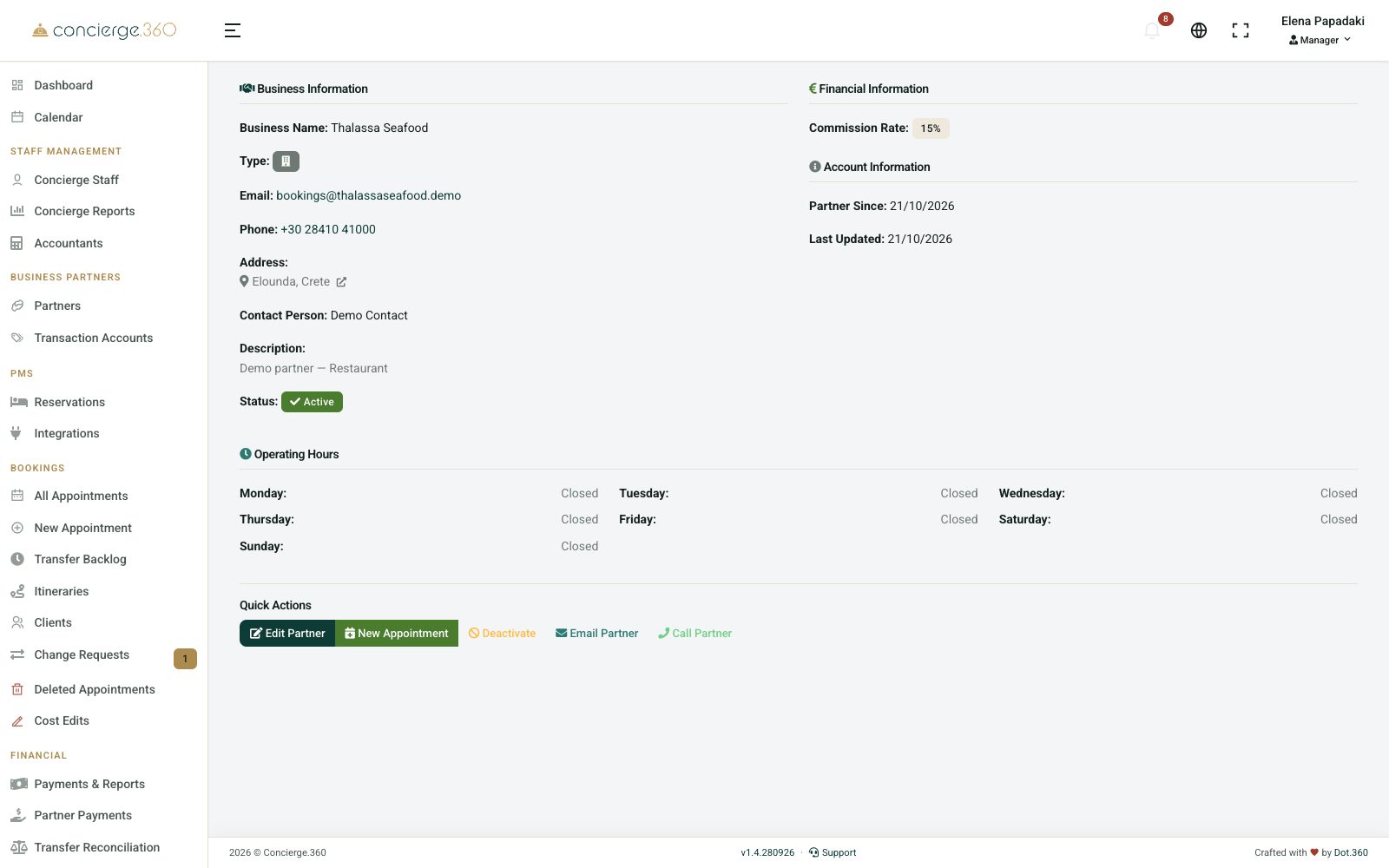
Now make a booking the way your concierges will. It goes to the partner, who approves or declines it.
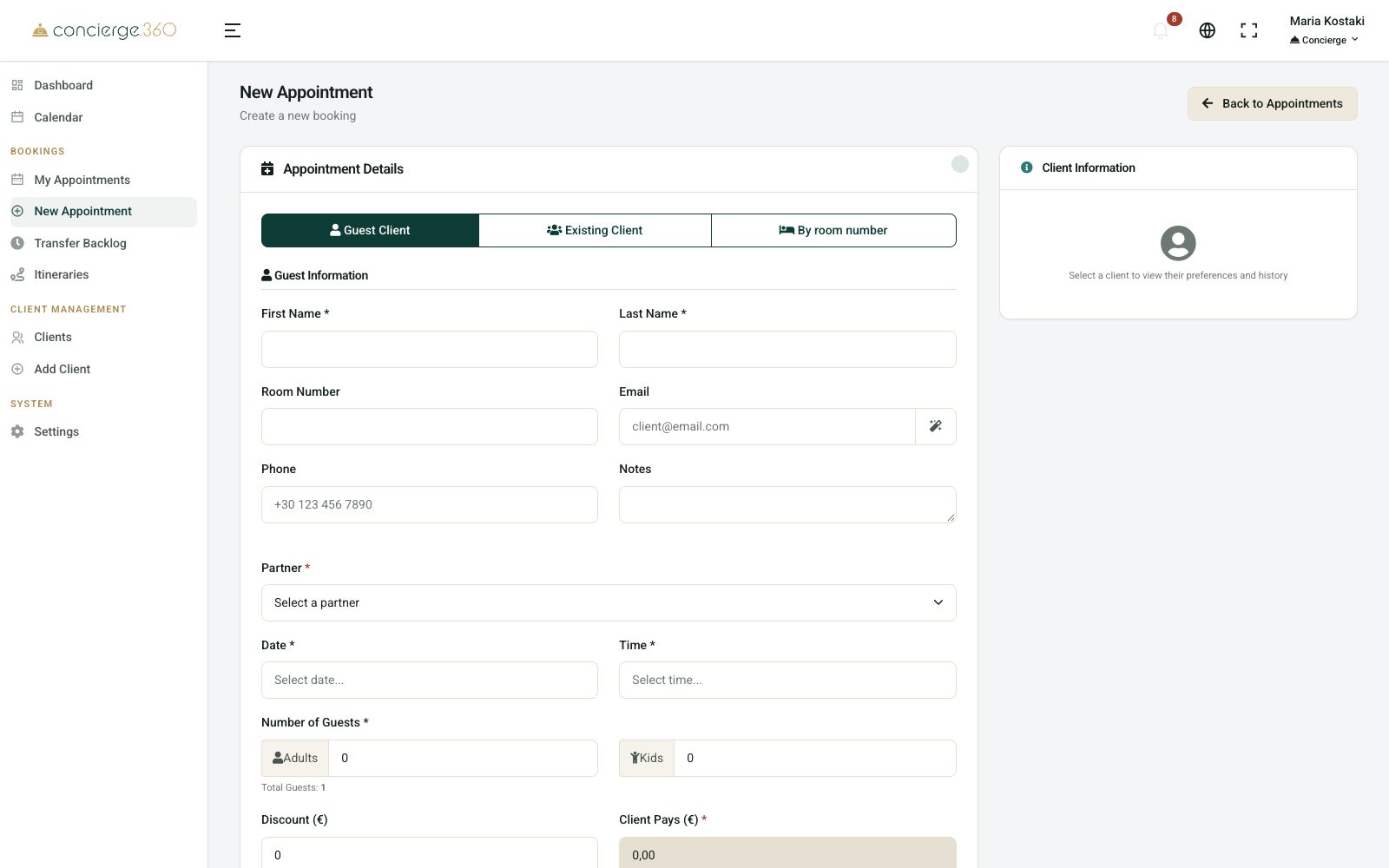
Create the booking
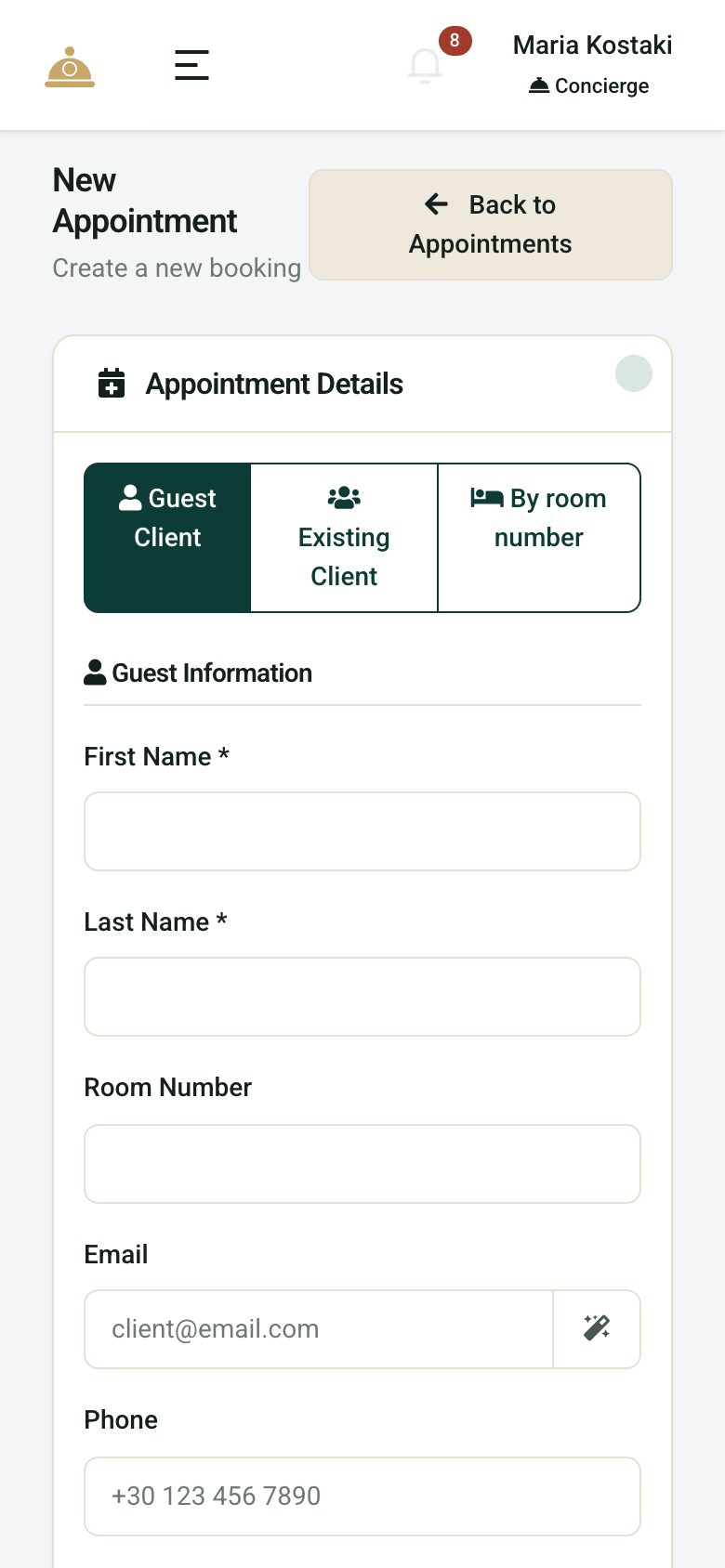
Go to Bookings›New Appointment.
- Choose the guest: Guest Client (type name and room), Existing Client, or By room number if your PMS is connected.
- Choose the Partner, then the Products and quantities.
- Set Date, Time and Number of Guests (adults and kids).
- Check Client Pays (€), add a discount or Special Requests if needed.
- Click Create Appointment.
Add Products from Another Partner books several partners for the same guest in one go.
What happens next
- The booking is saved as Pending.
- The partner gets an email with Approve and Decline buttons (or a notification in the Partner app). The link works once, for 48 hours.
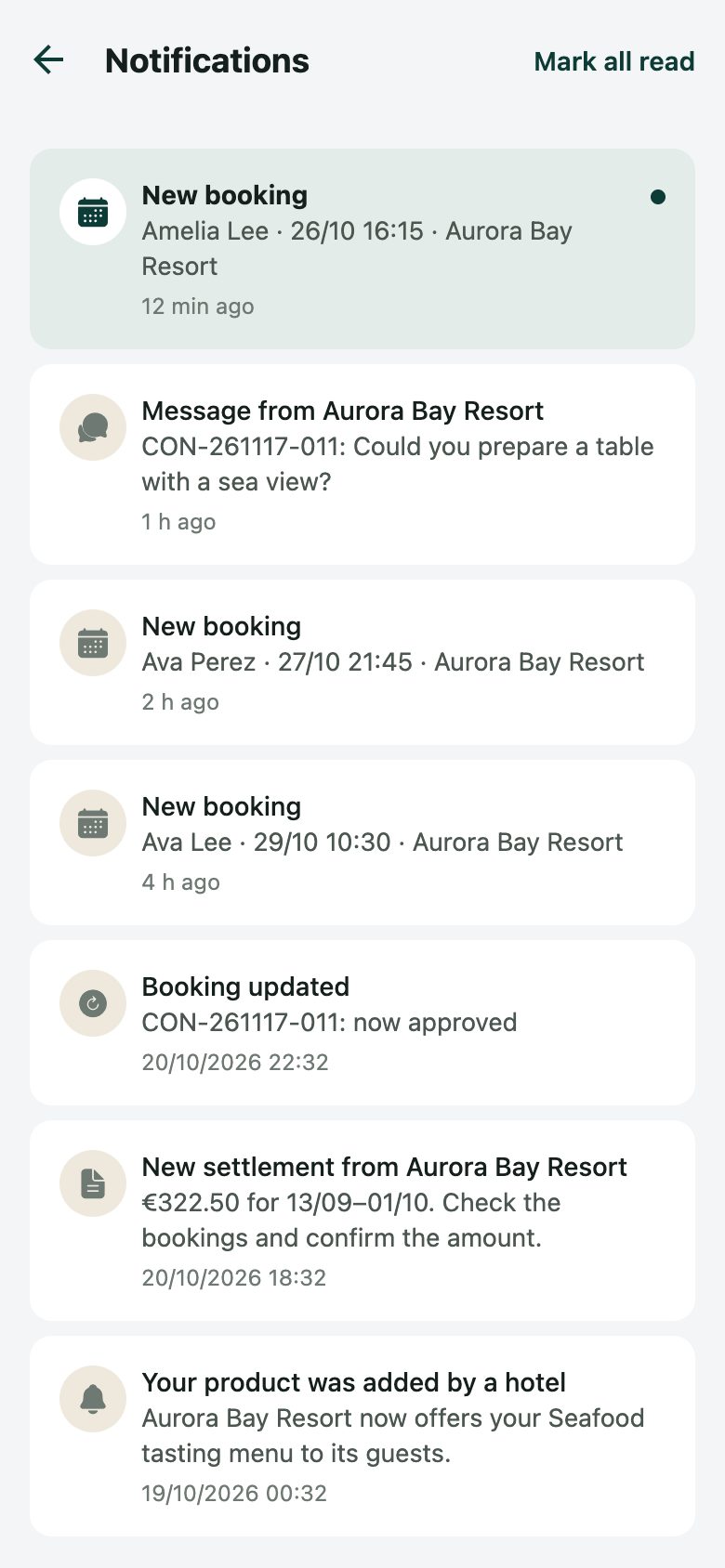
- When they answer, the status changes to Approved or Declined and the bell at the top shows it.
- After the service it becomes Completed (automatically or by hand), or No-show / Cancelled.
Partner didn't answer? Call them, then click Confirm Appointment on the booking yourself.

Daily work at the desk
Where your team follows bookings every day.
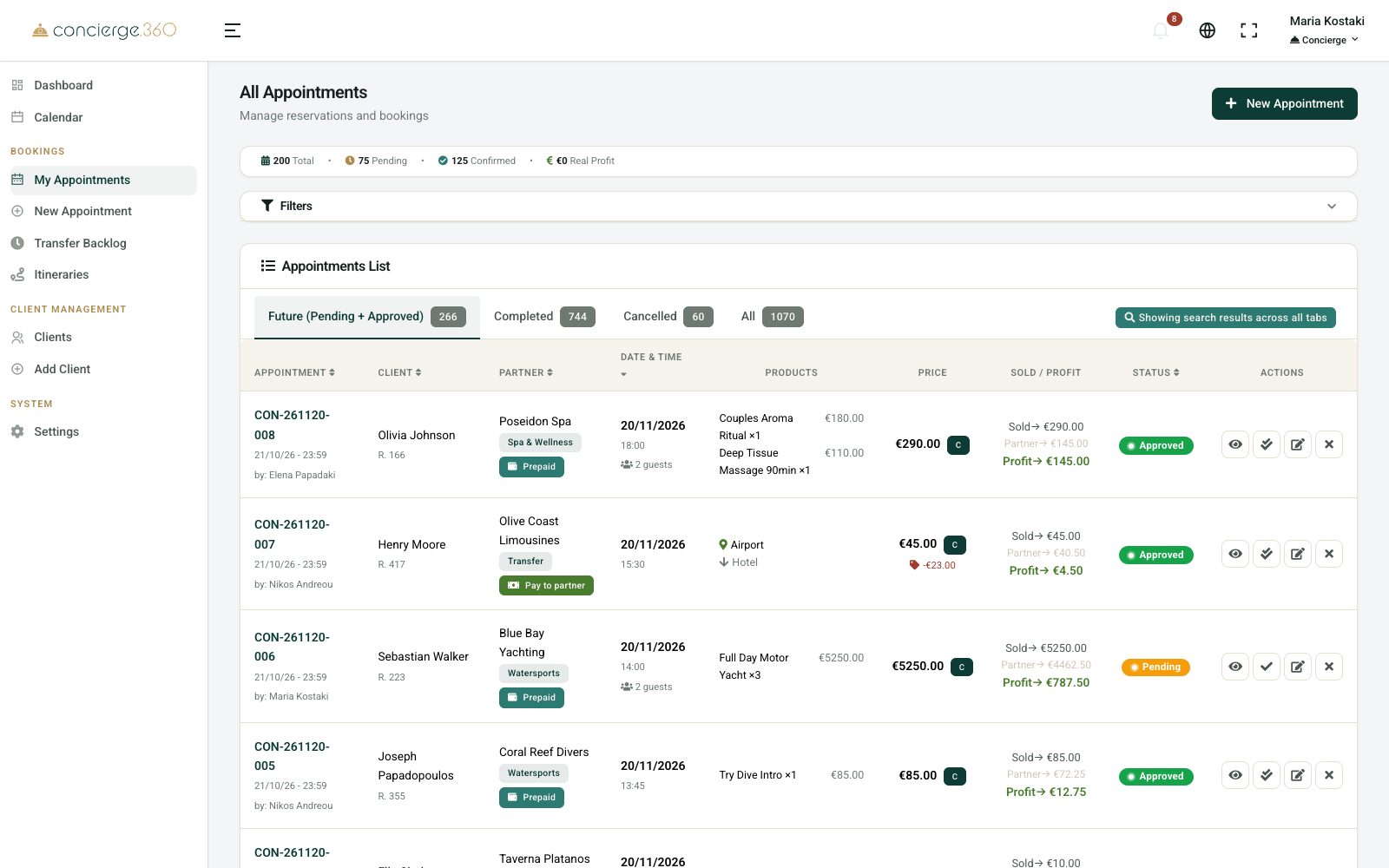
On each booking
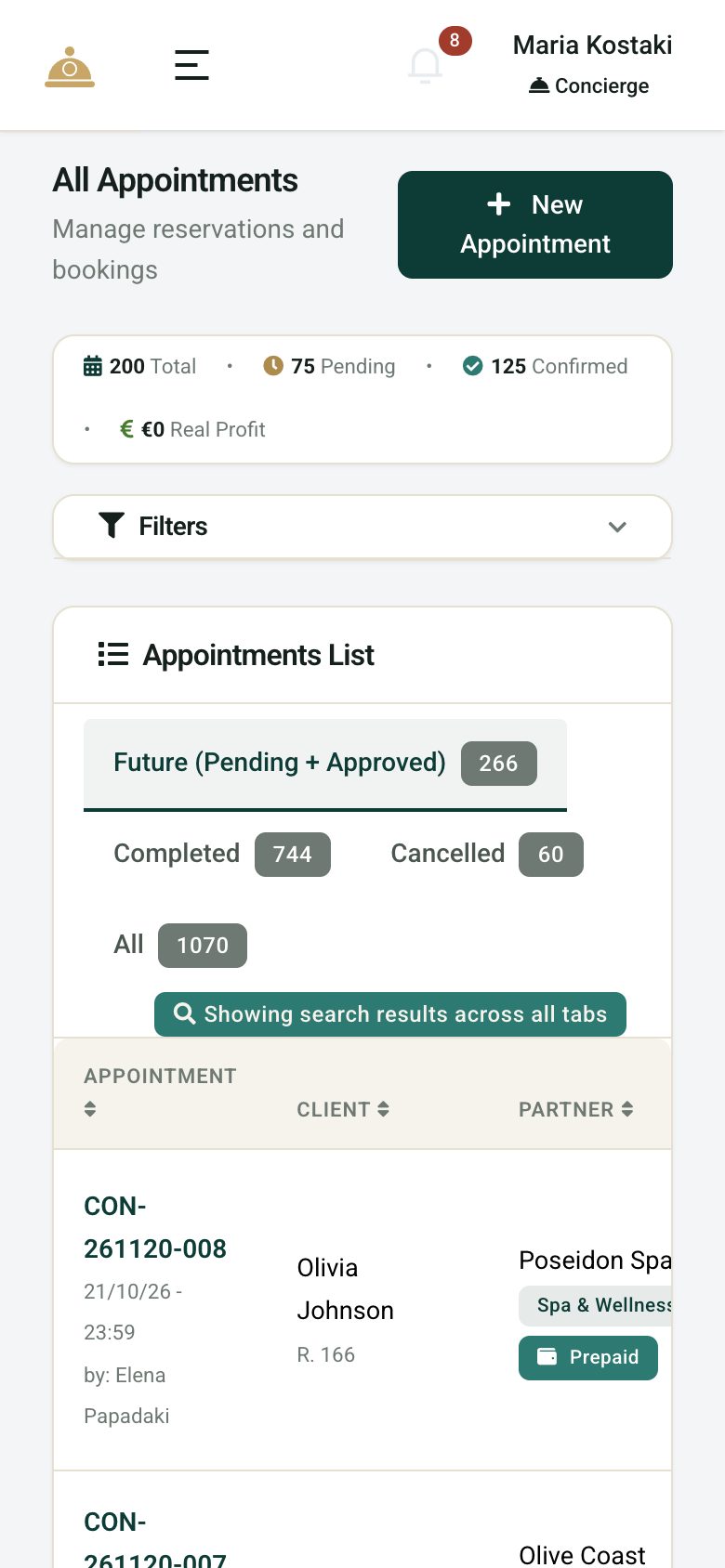
- View Details: everything about the booking, emails and history.
- Confirm / Complete: change the status by hand.
- Pass to another partner: if the partner declined.
- Cancel or Cancel with Fees (your fee and the partner's fee).
- Edit costs: fix the partner cost after a completed booking. Every change is logged.
Calendar, clients and the bell
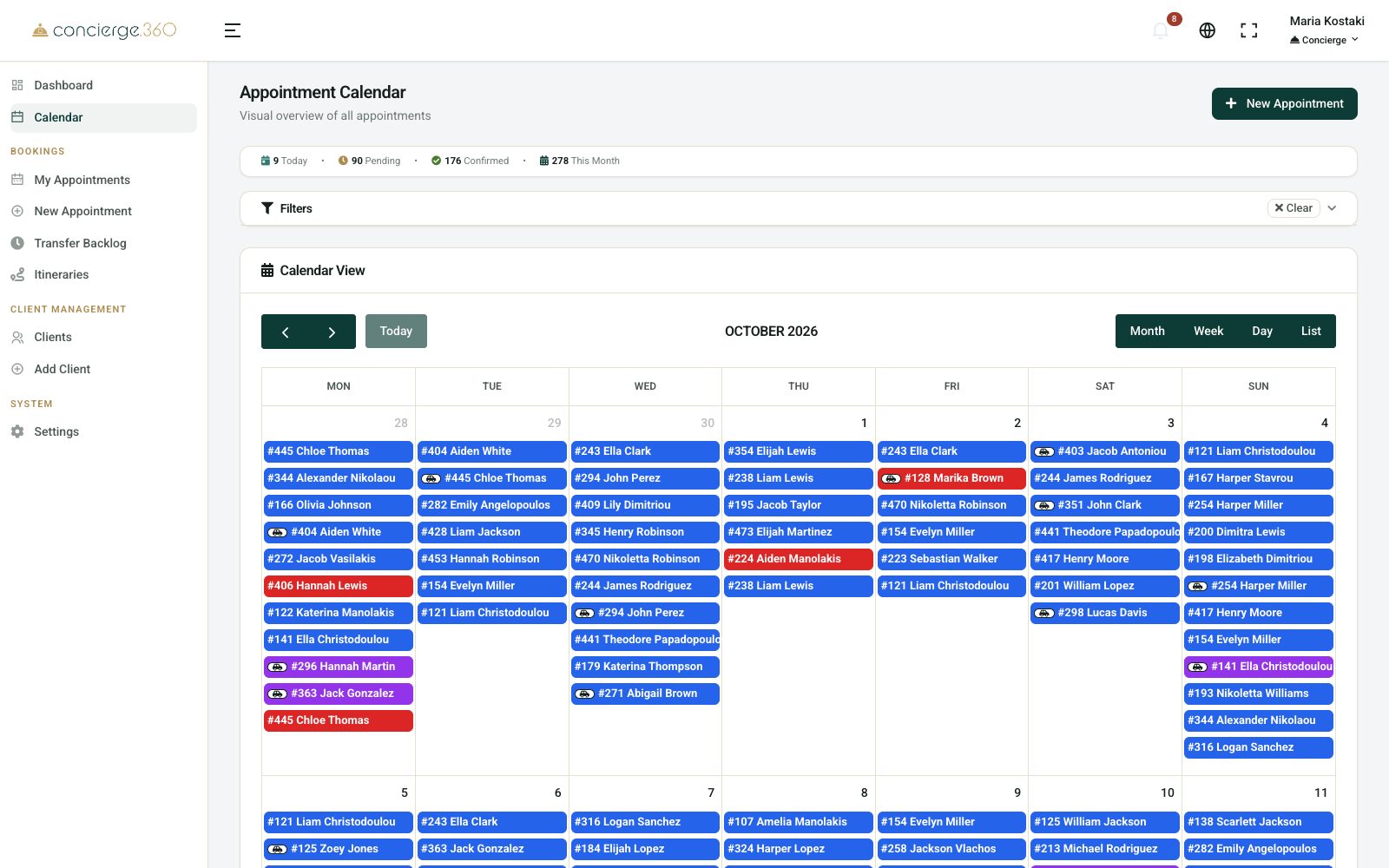
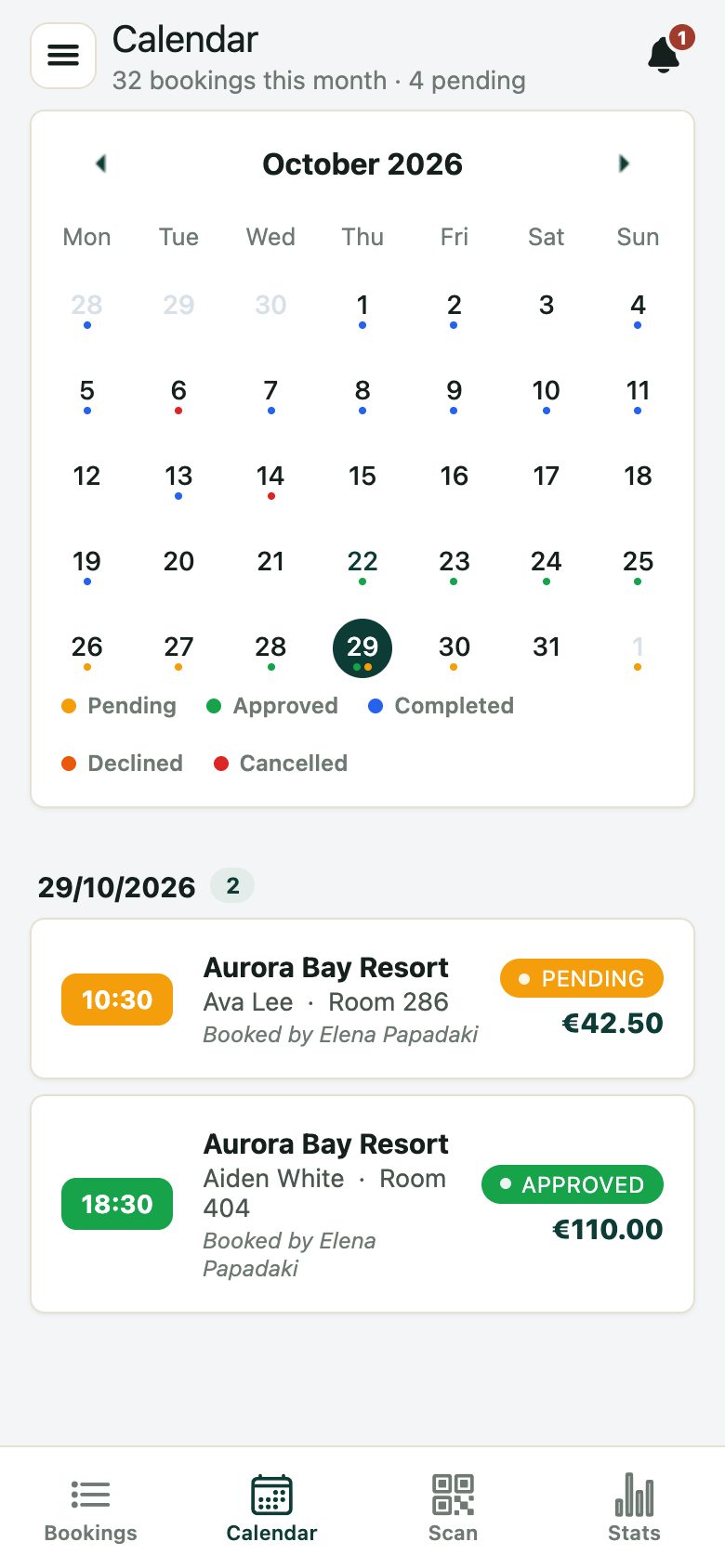
- Calendar: month, week or day view of all bookings, coloured by status.
- Clients: guest profiles with preferences, allergies, VIP and booking history.
- The bell (top right): partner answers, changes, messages and settlements.
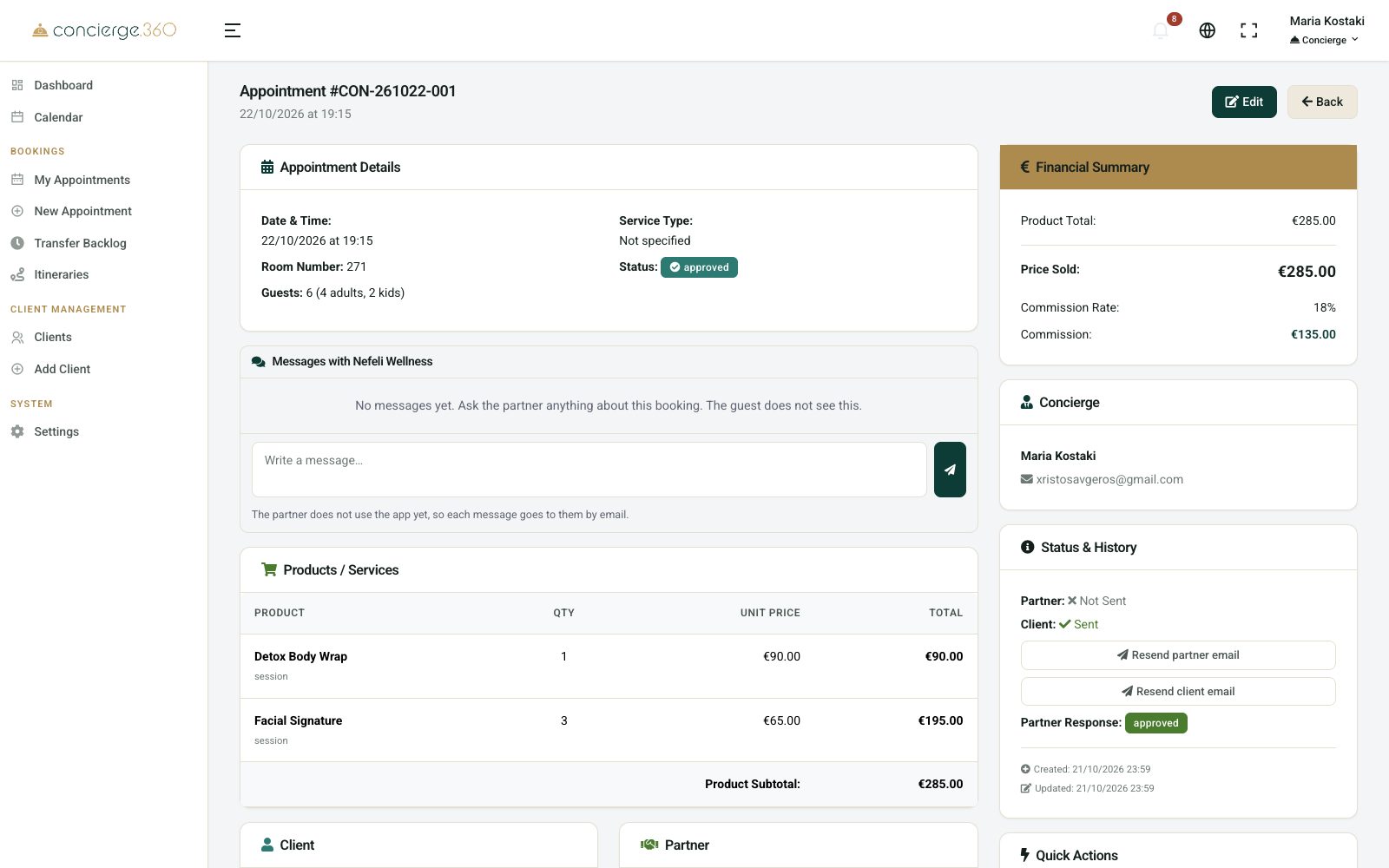
Payments, settlements and reports
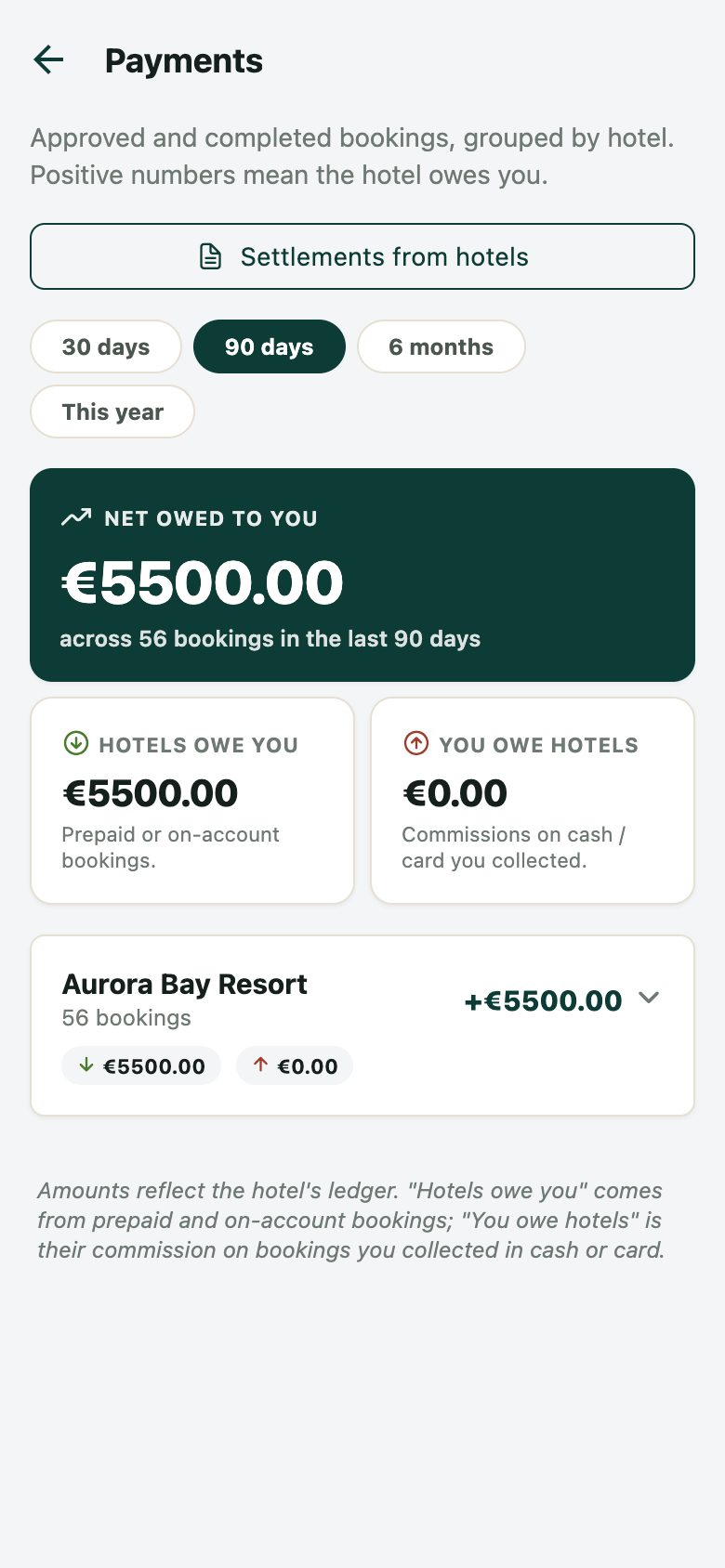
Concierge360 tracks what each booking earned, what you owe each partner and what each concierge earned.
Settle with a partner
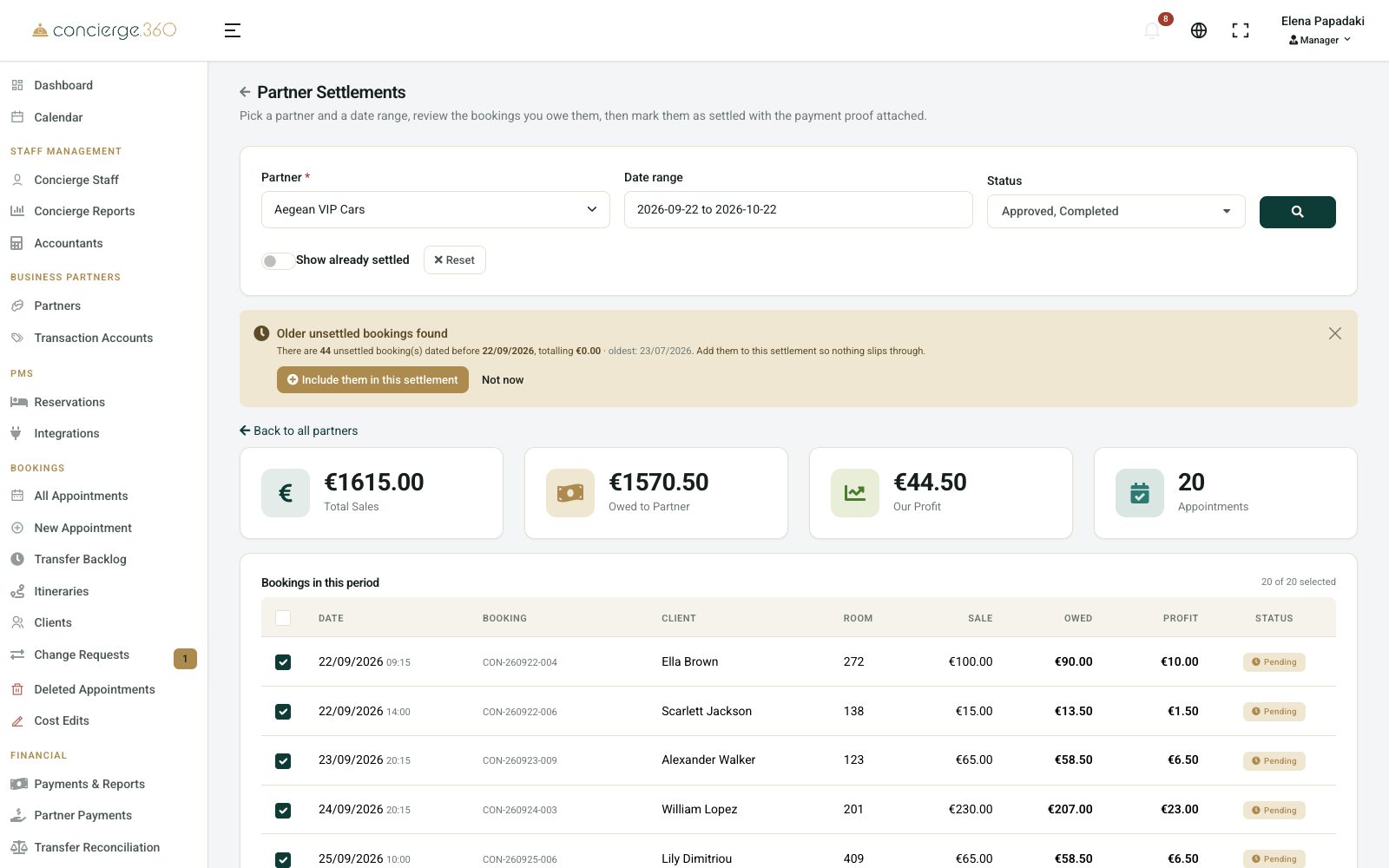
Go to Financial›Partner Payments and click Settlements.
- Choose the Partner and the period.
- Tick the bookings you are paying.
- Click Review & Send, then Confirm settlement. Attach the proof of payment if you like.
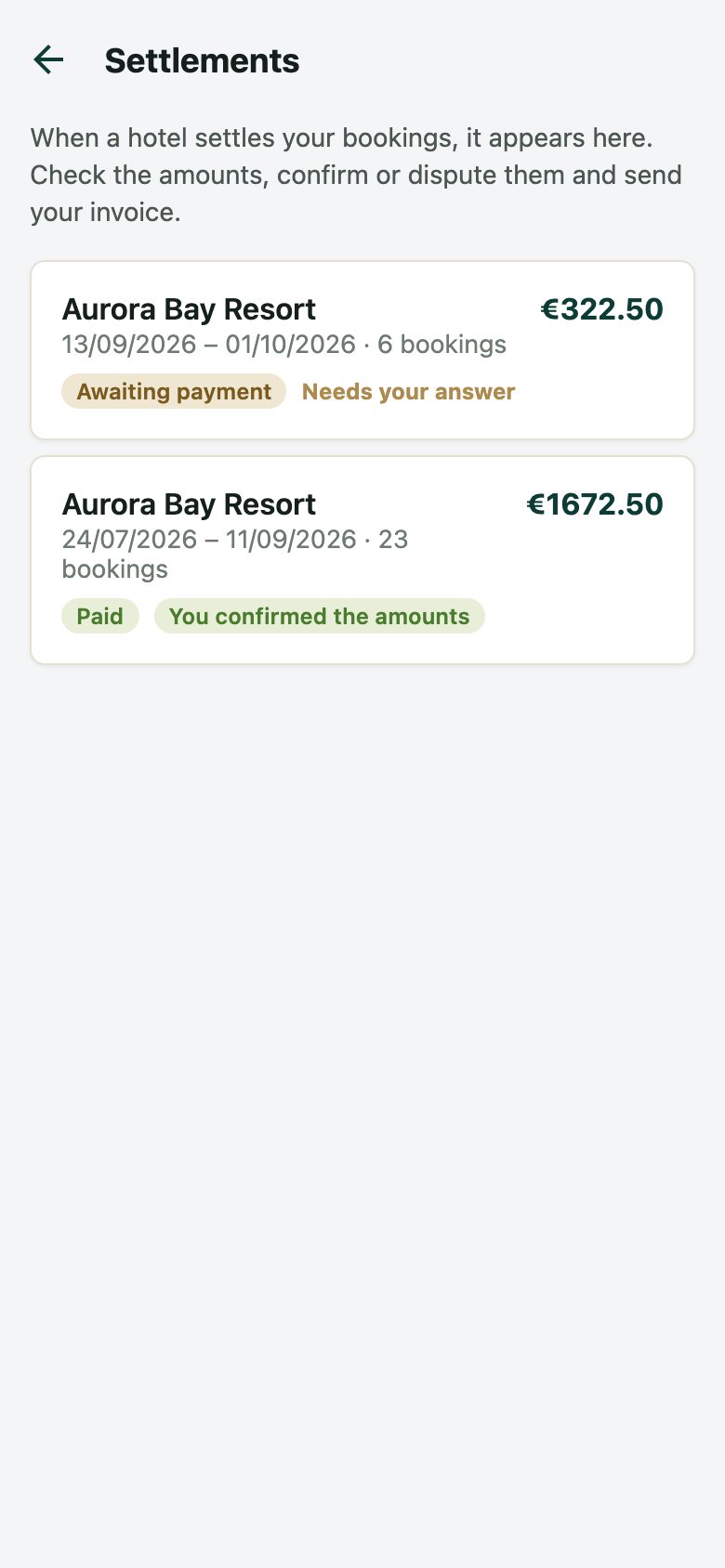
- Your accountant approves it. The partner can confirm it and send an invoice from the Partner app.
Reports
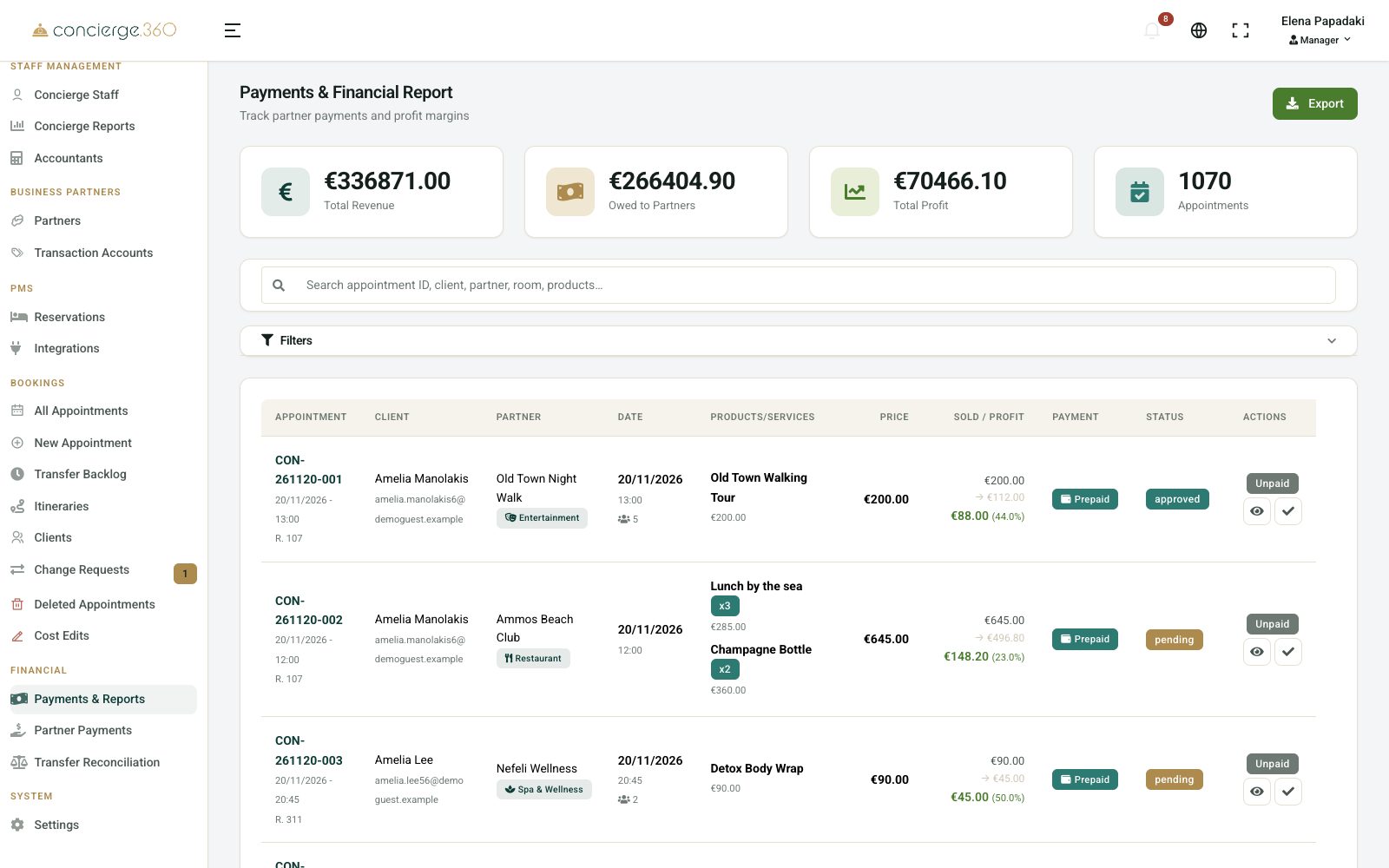
- Financial›Payments & Reports: every booking with its revenue, cost and profit.
- Financial›Partner Payments: totals per partner.
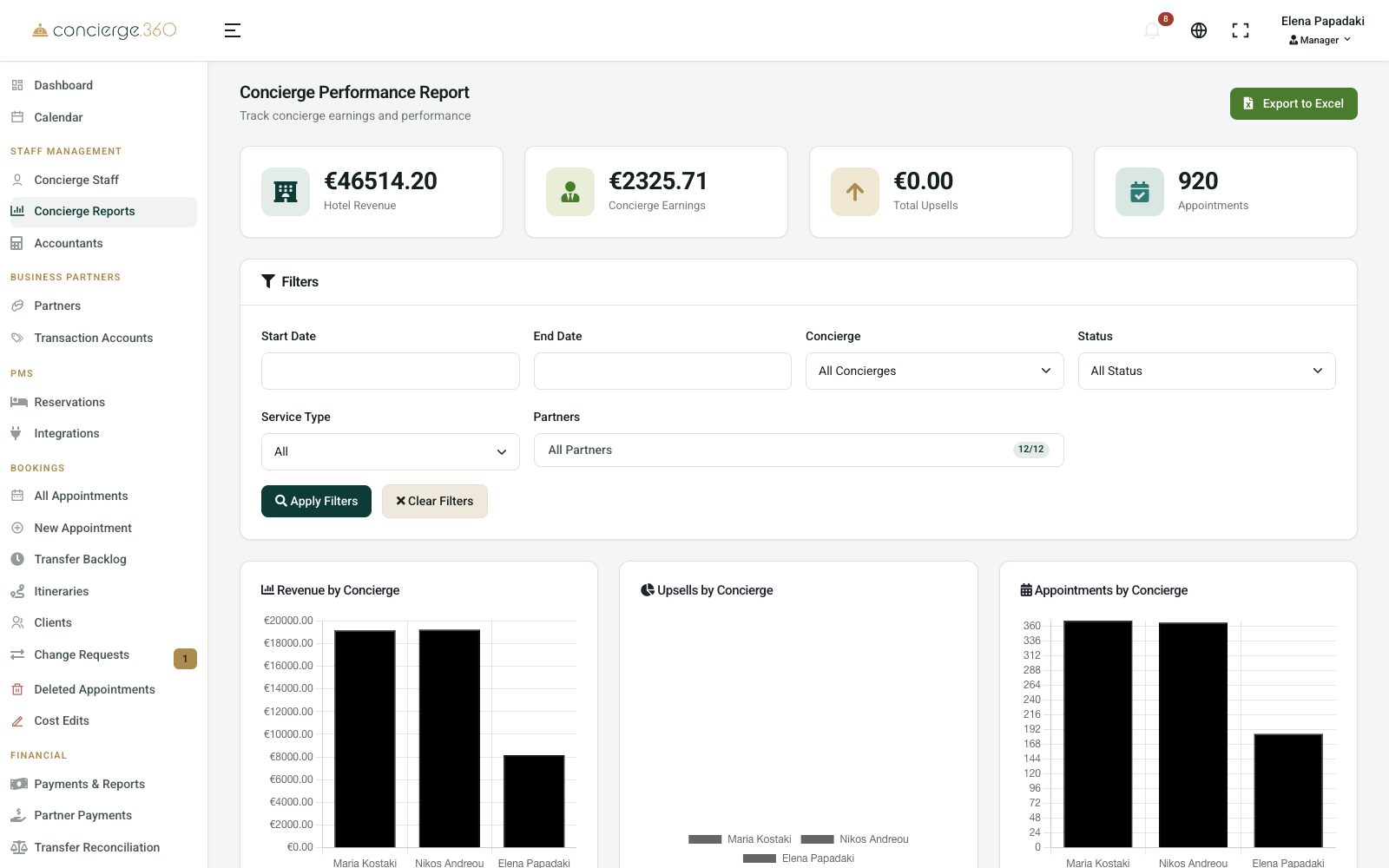
- Staff Management›Concierge Reports: revenue, upsells and bookings per concierge.
Do more with Concierge360
On requestAsk the Concierge360 team to switch these on for your hotel.
Guest itineraries
Build a day-by-day plan for a guest with several partners, share a link, and let the guest approve it on their phone. On approval, every line becomes a booking.
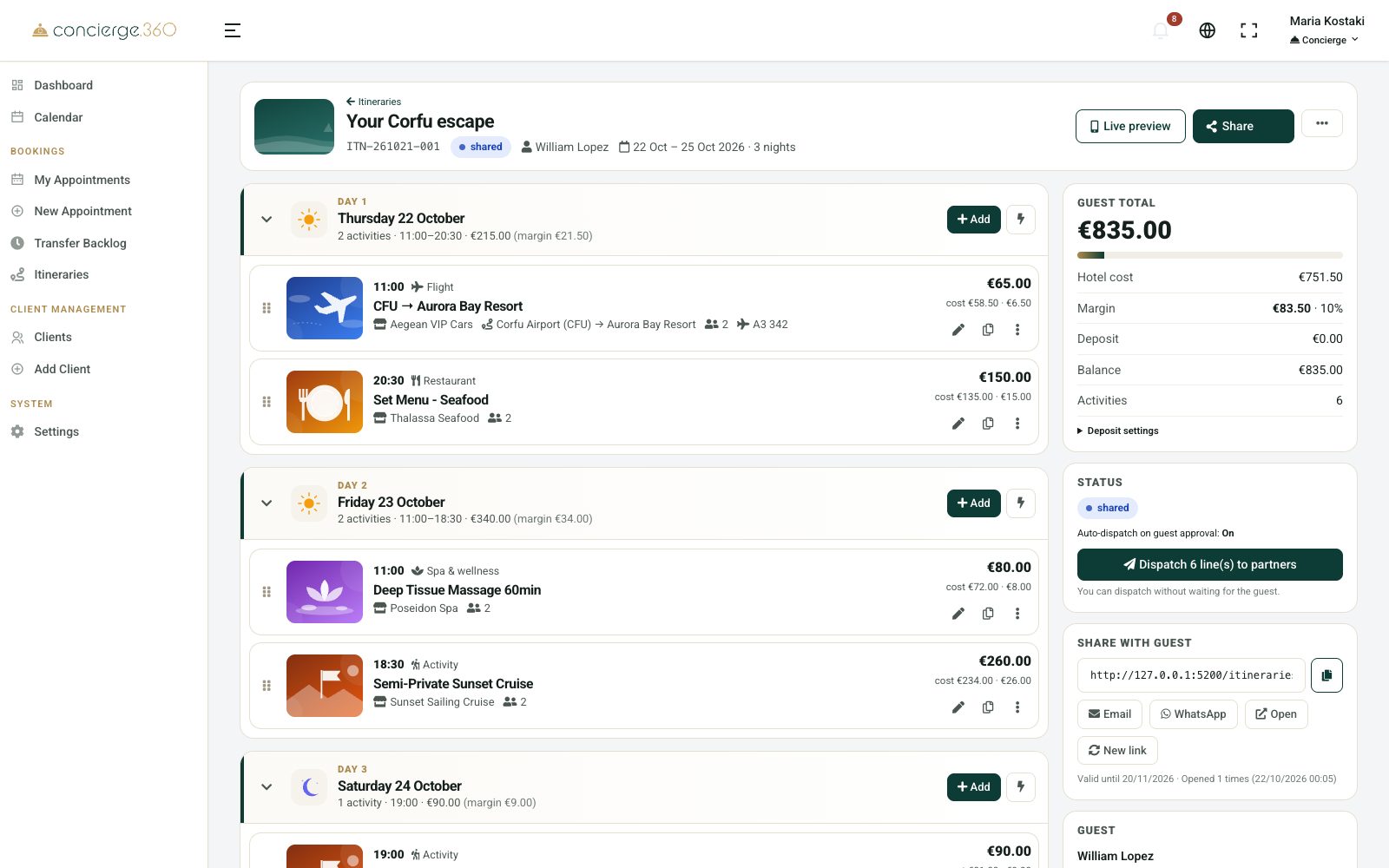
- Go to Bookings›Itineraries and click New Itinerary (or start from a template).
- Choose the guest, title, dates and guest language, then Save & add activities.
- Add activities per day. Totals and your margin update as you go.
- Click Share to copy the link or send it by email.
- When the guest approves, click Dispatch to partners (or let it happen automatically in the itinerary settings).


Guest self-booking (QR in the room)
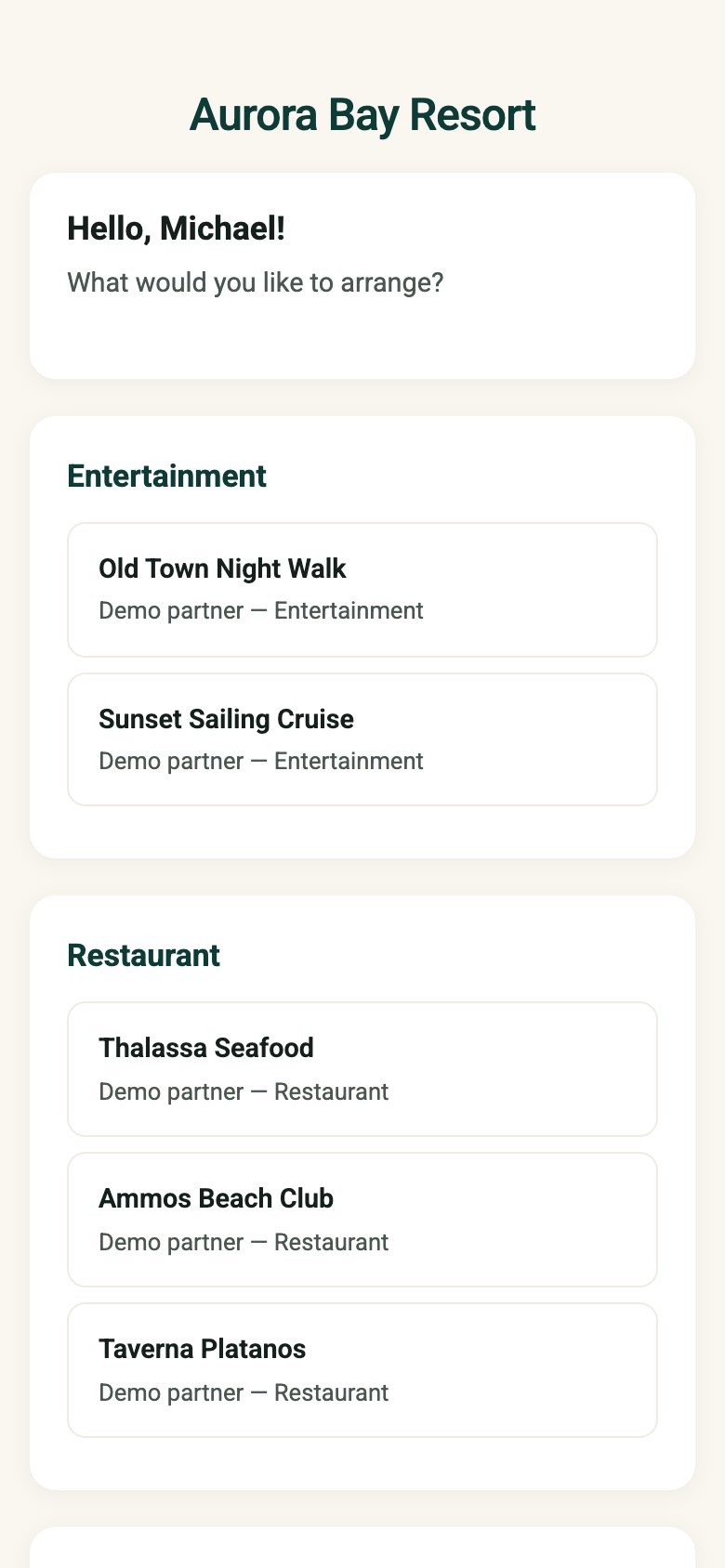
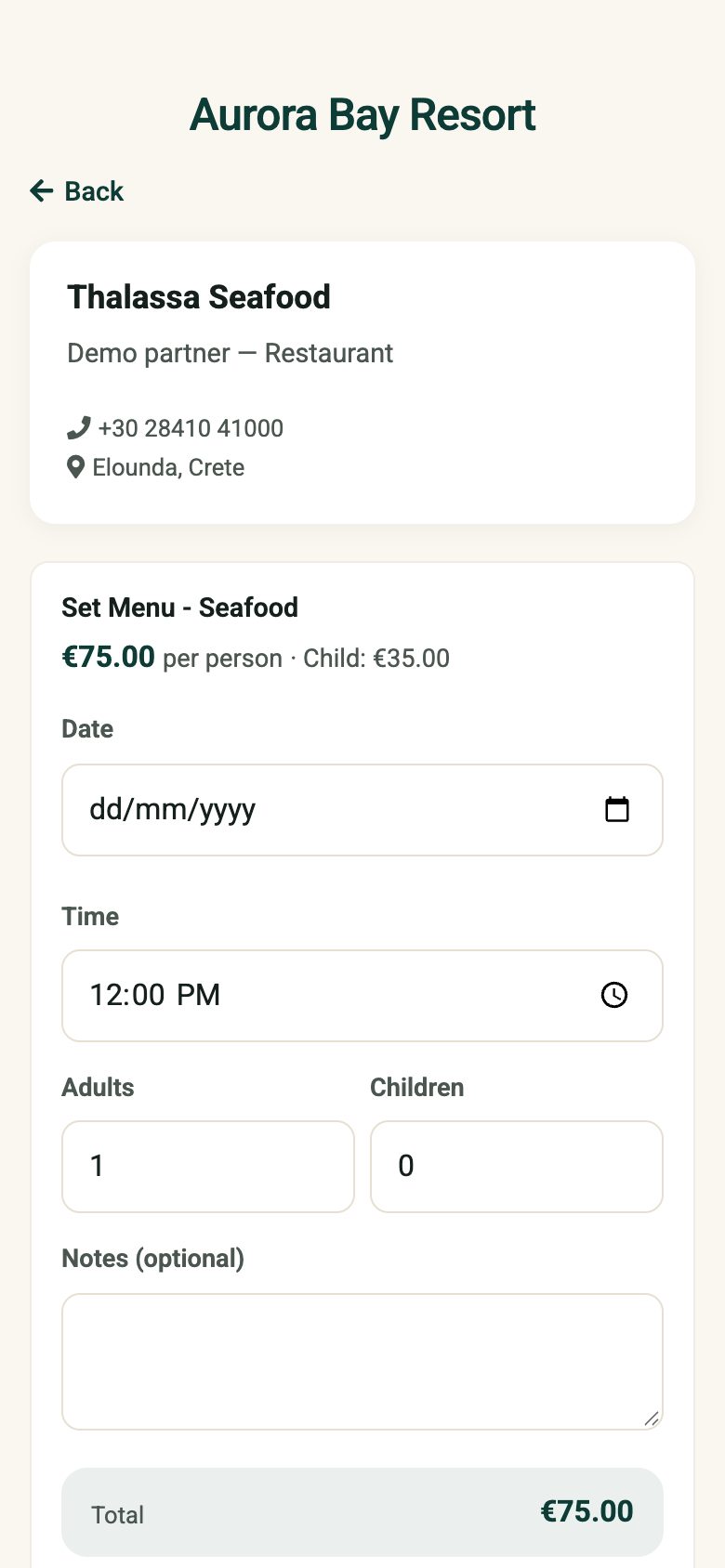
Guests scan a QR code, sign in with room number and last name, and book from your partners themselves. You decide which partners they see and whether the concierge approves first.
Set it up
- Go to Settings›Guest booking. Choose your Hotel slug (the end of the web address).
- Add a support phone and email, your colours and an optional background picture.
- Keep Require concierge approval before confirming on if you want to check each booking.
- On each partner (Edit), tick Show this partner in the guest self-booking catalog.
- Click Download QR code and print it for the rooms or reception.
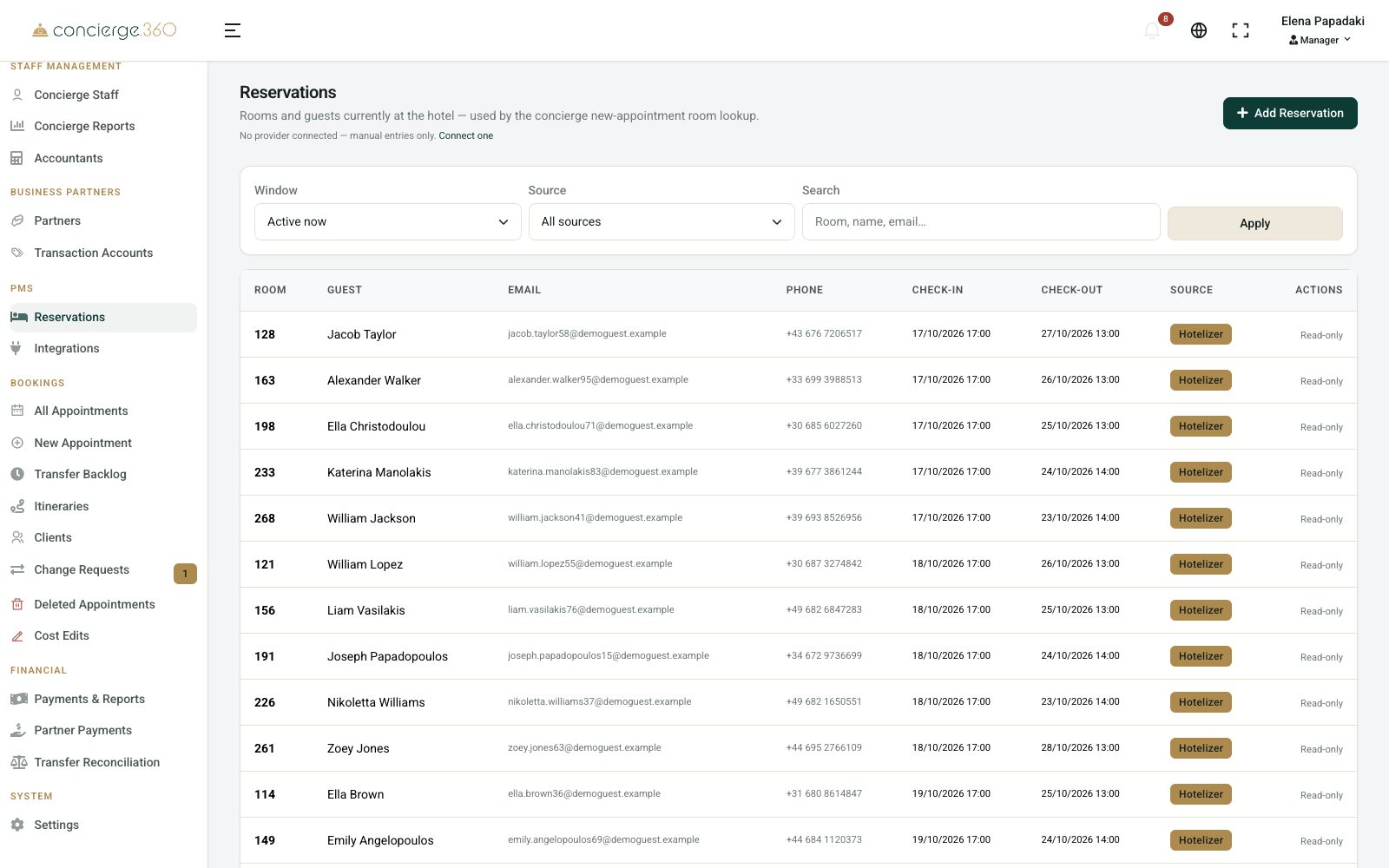
Guests sign in with room and last name, so your in-house guests must be known: connect your PMS or add reservations by hand.
Online payment (optional)
In Settings›Integrations›Payments connect Stripe or Viva, then choose When guests book:
- No online payment: as today.
- Guest chooses: pay now by card or at the hotel.
- Always pay when booking: the booking is made only after the payment succeeds.


PMS and POS integrations
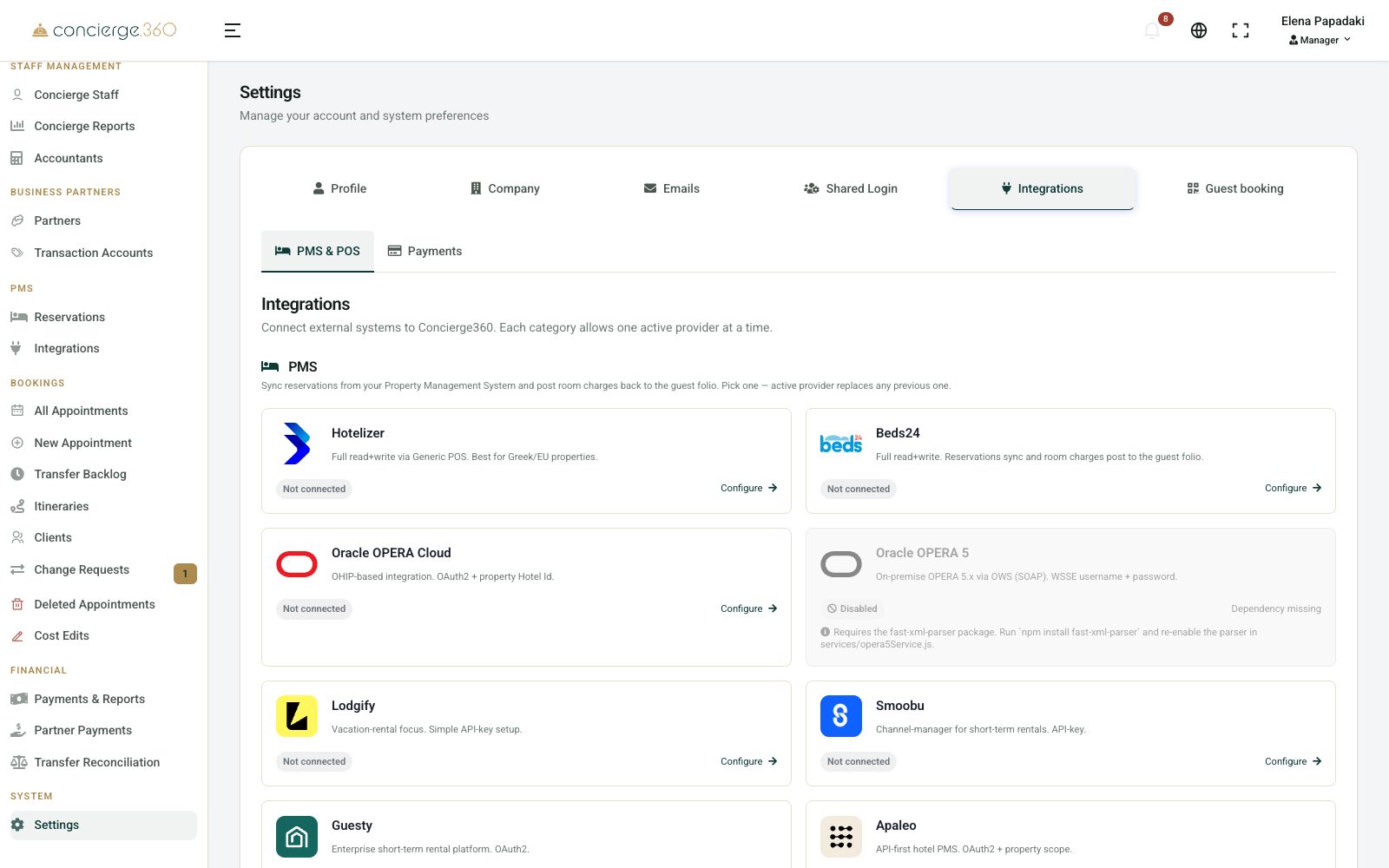
Connect your PMS (Hotelizer, Beds24, Oracle OPERA, Lodgify, Smoobu, Guesty, Apaleo or Google Sheets) to see in-house guests, book by room number and post room charges. symPOSium POS adds guest lookup and room charges from the POS.
Transfer.360 partners
If a transfer company uses Transfer.360, tick This partner uses Transfer.360 on the partner and enter the Company ID, API Secret Key and Transfer.360 Installation URL they give you.
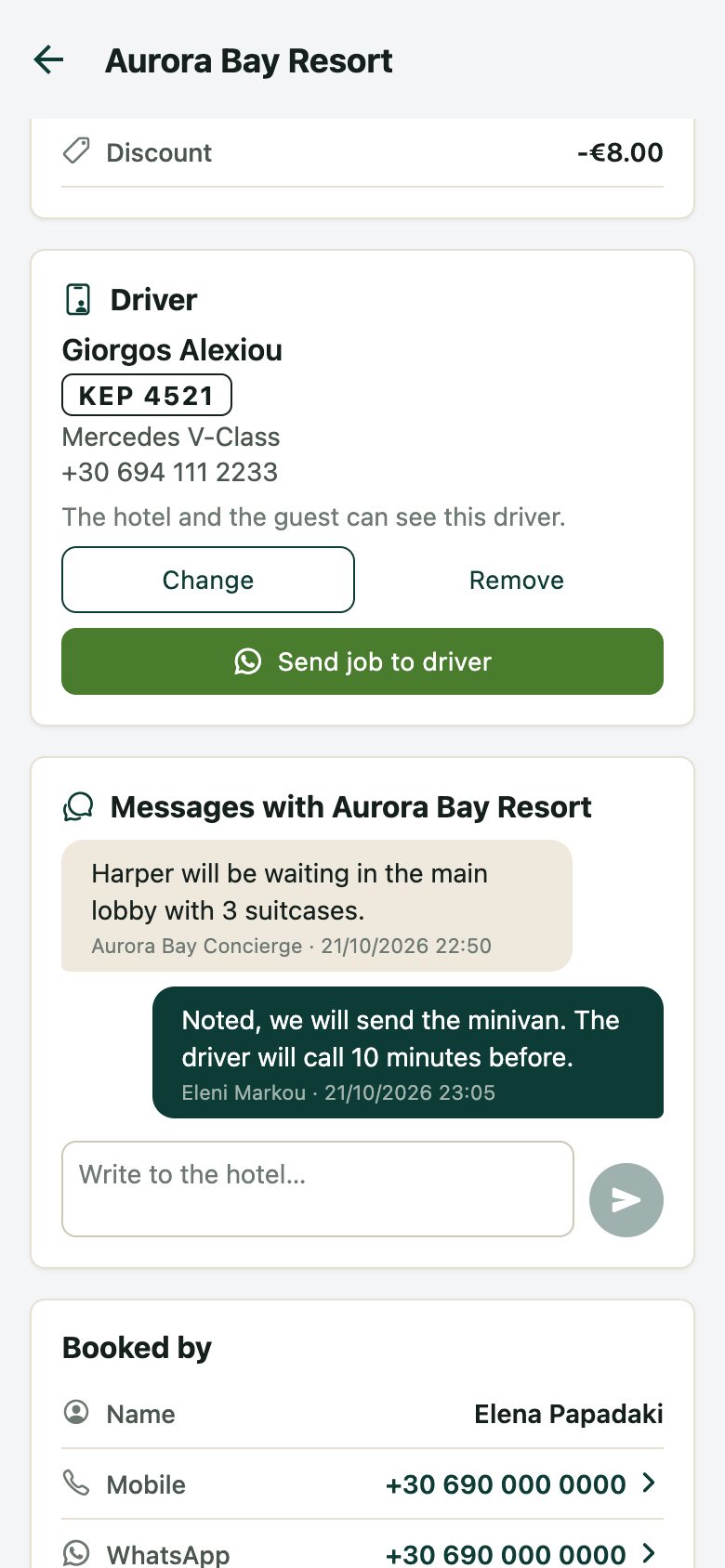
- Bookings go straight into their system: vehicle category, live price, flight and driver.
- Driver details and arrival time appear on the booking and the bell.
- Transfers are completed when Transfer.360 reports the trip finished. Check them in Financial›Transfer Reconciliation.
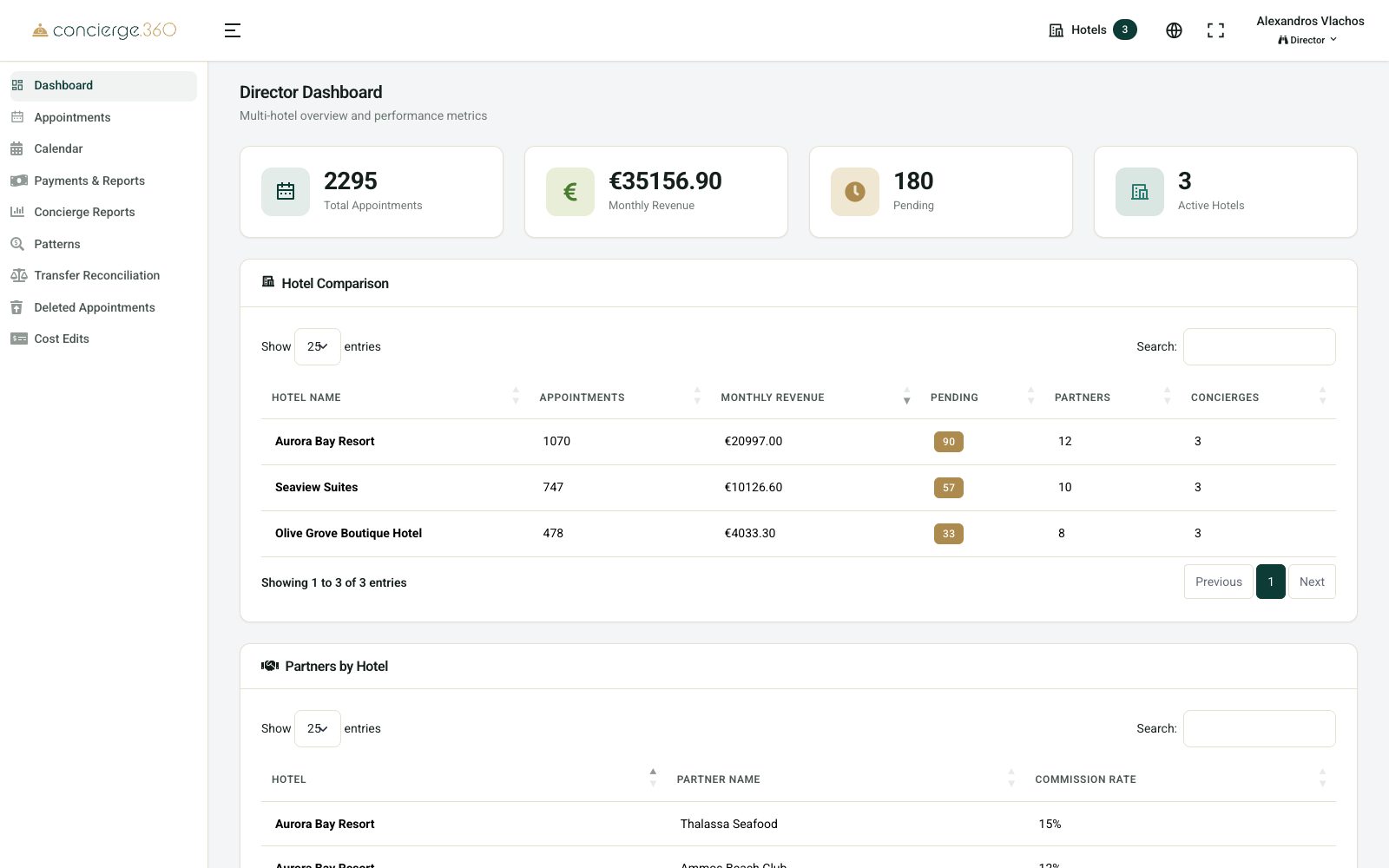
Several hotels
The Concierge360 Partner app
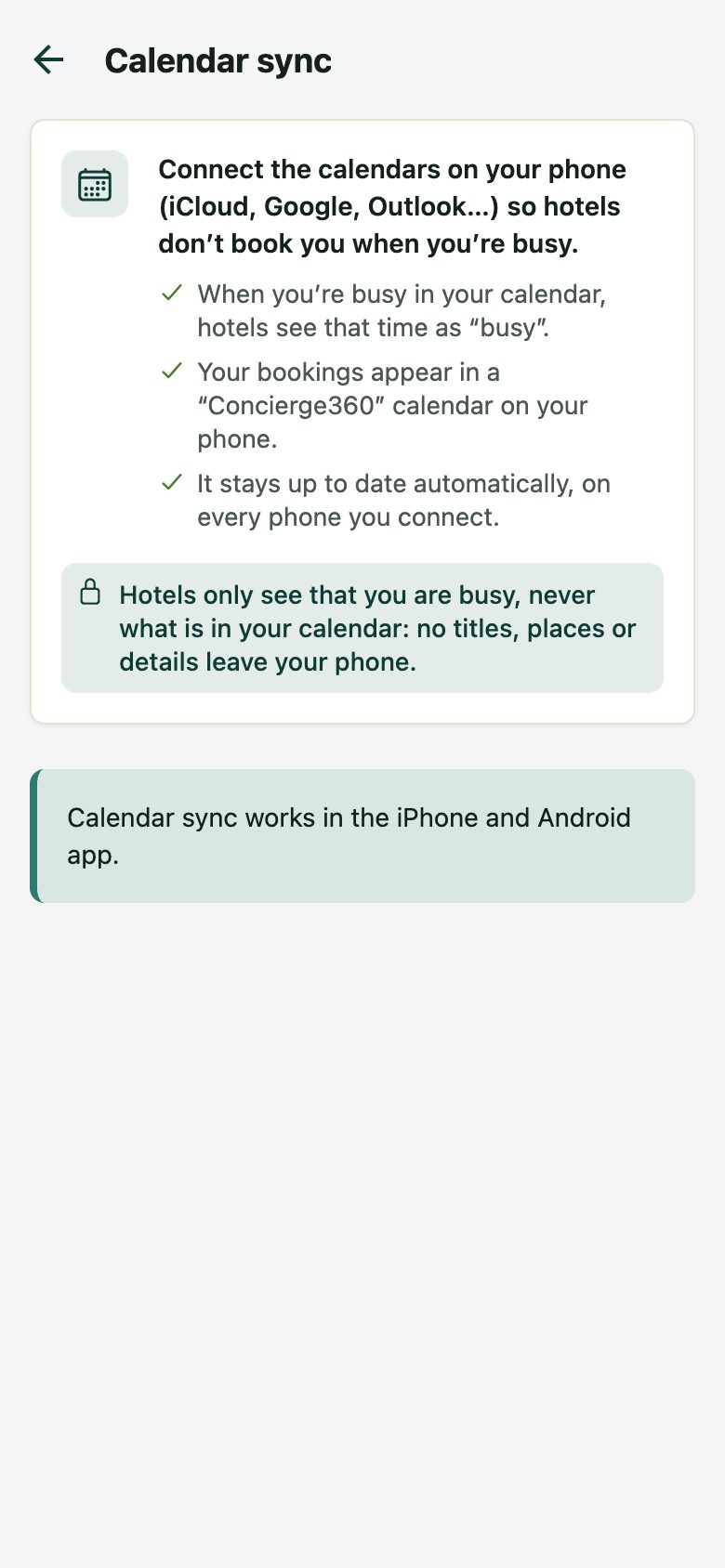
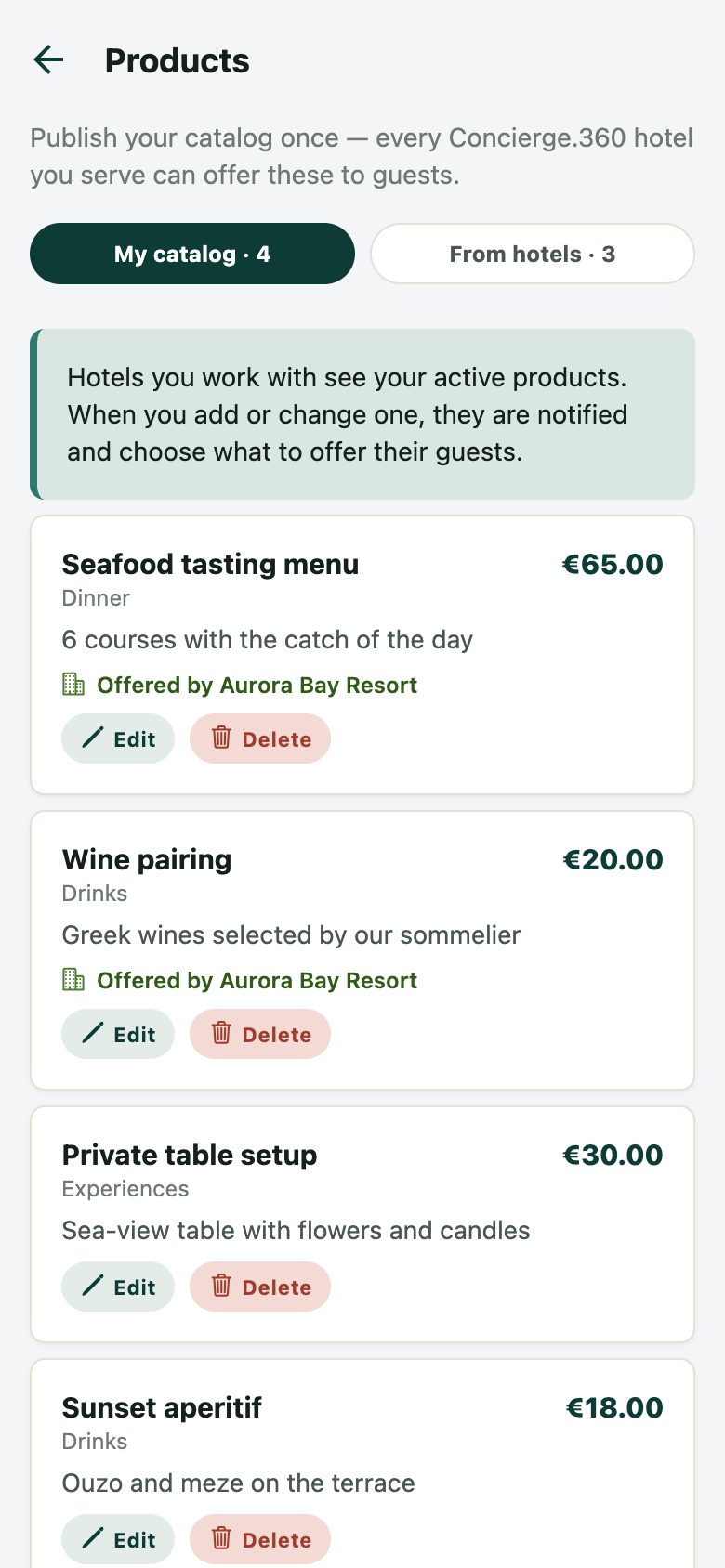
On requestYour partners can answer bookings in an app instead of email: one tap to approve, chat with your desk, opening hours and busy times, settlements and invoices. Free for partners, with paid plans for more.
Invite a partner
- In Business Partners›Partners, click the Partner app invite icon on the partner.
- Choose how long it is valid and click Create code.
- Send the code or link (Send by email). The partner installs the app, signs up with the same email and enters the code.
A partner who signs up with the email you have on file is linked automatically with their first booking.
What you get at the desk
- Faster answers: approve or decline from a notification.
- Closed days, opening hours and "probably busy" hints on the booking form.
- A chat with the partner on each booking.
- Change requests (new time, new price, cancellation) to accept in one click.
- Partner price lists to review before they reach guests.
- Settlements confirmed and invoices sent from the app.
Bookings
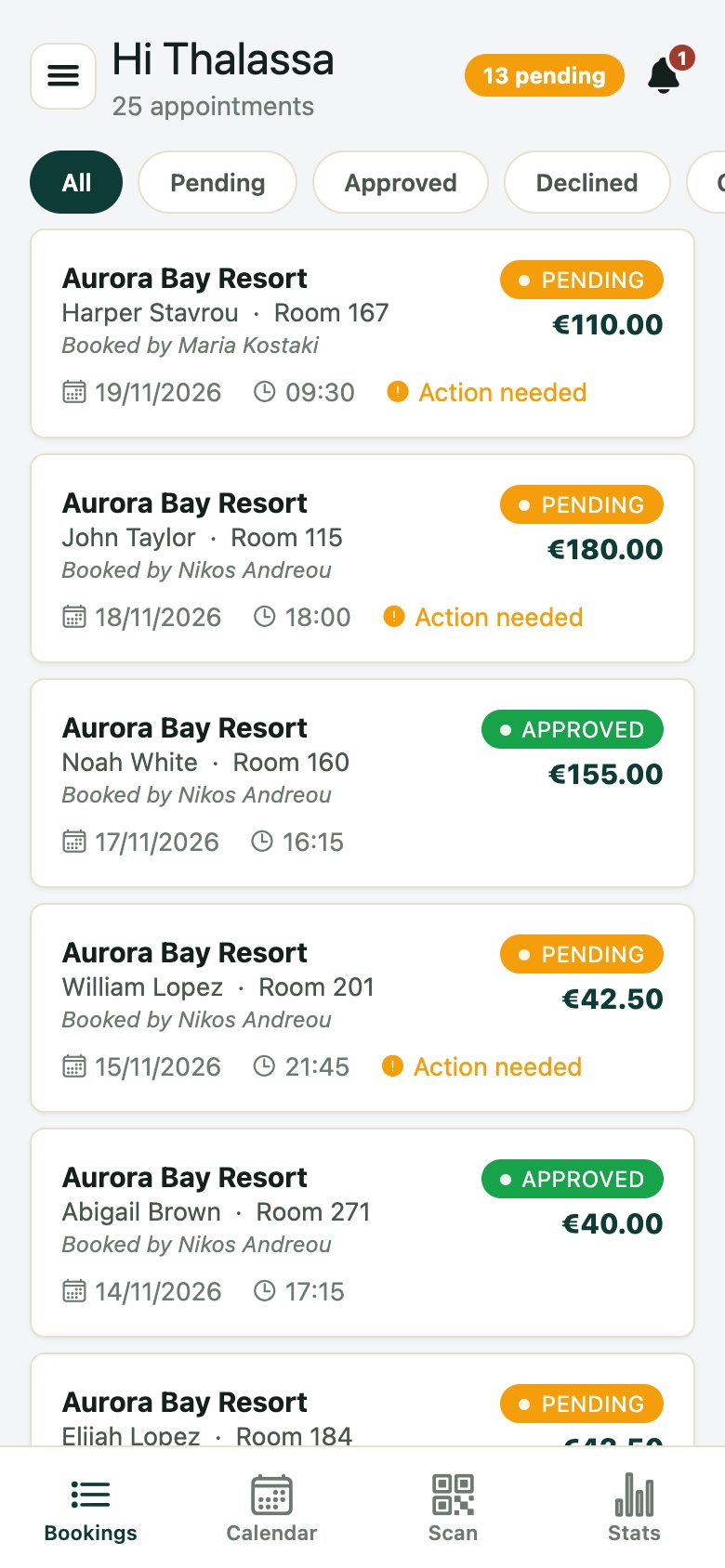
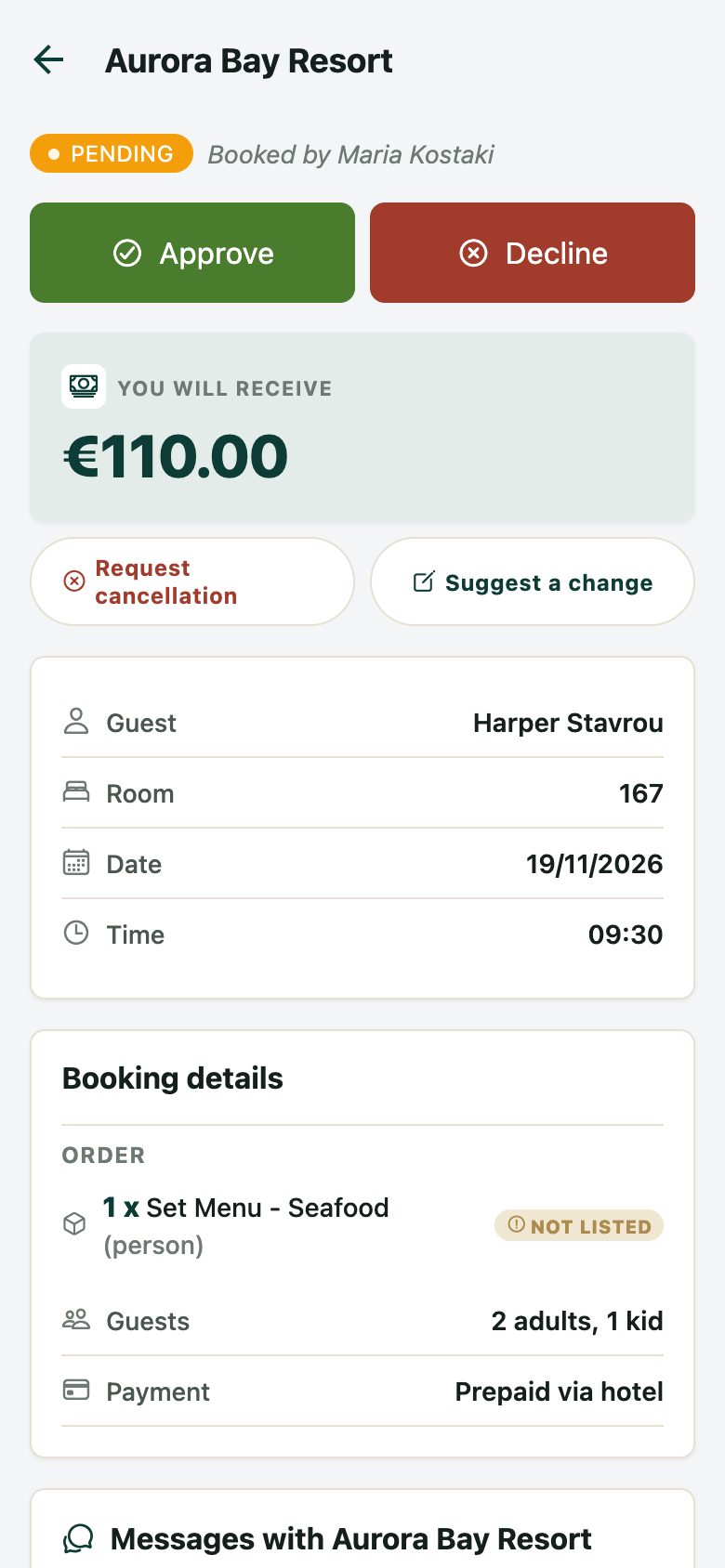
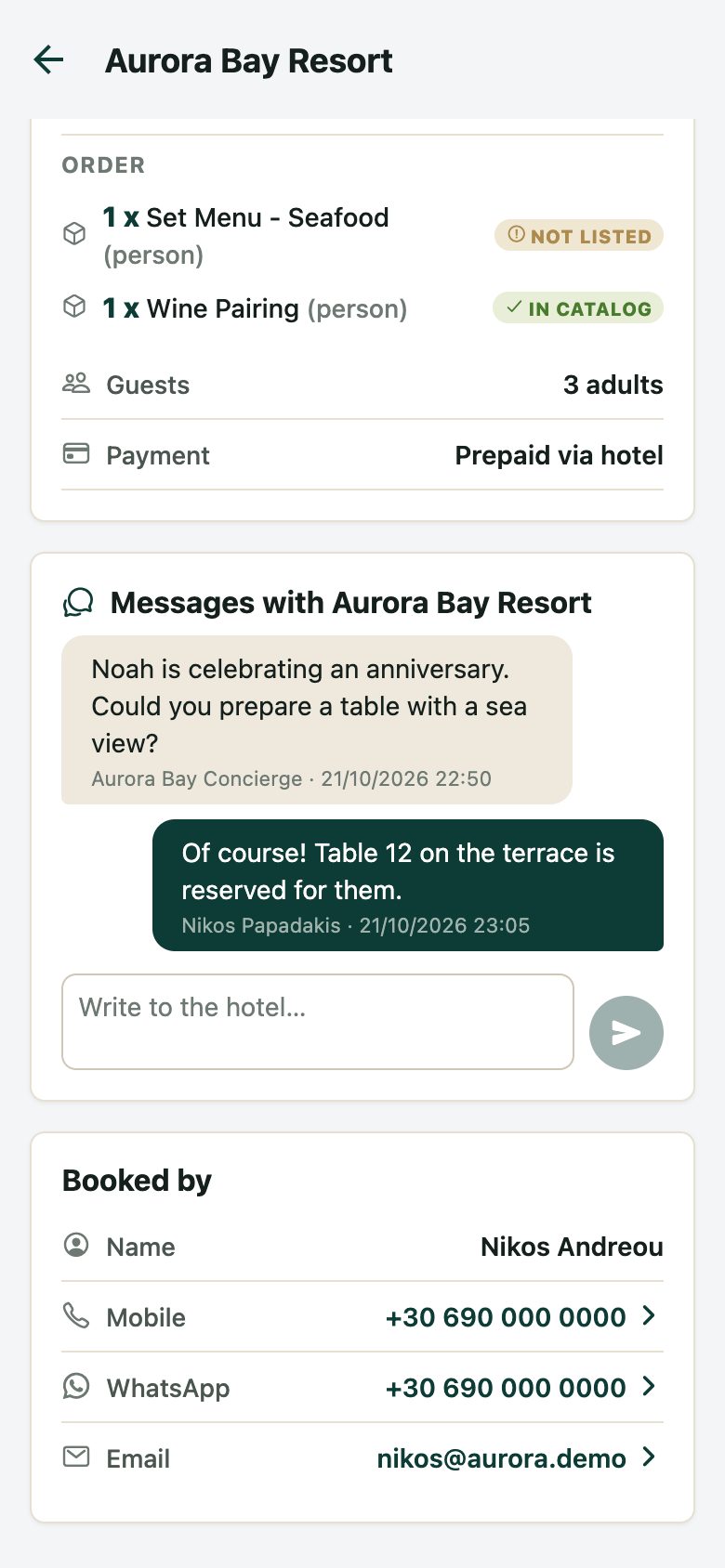
Availability
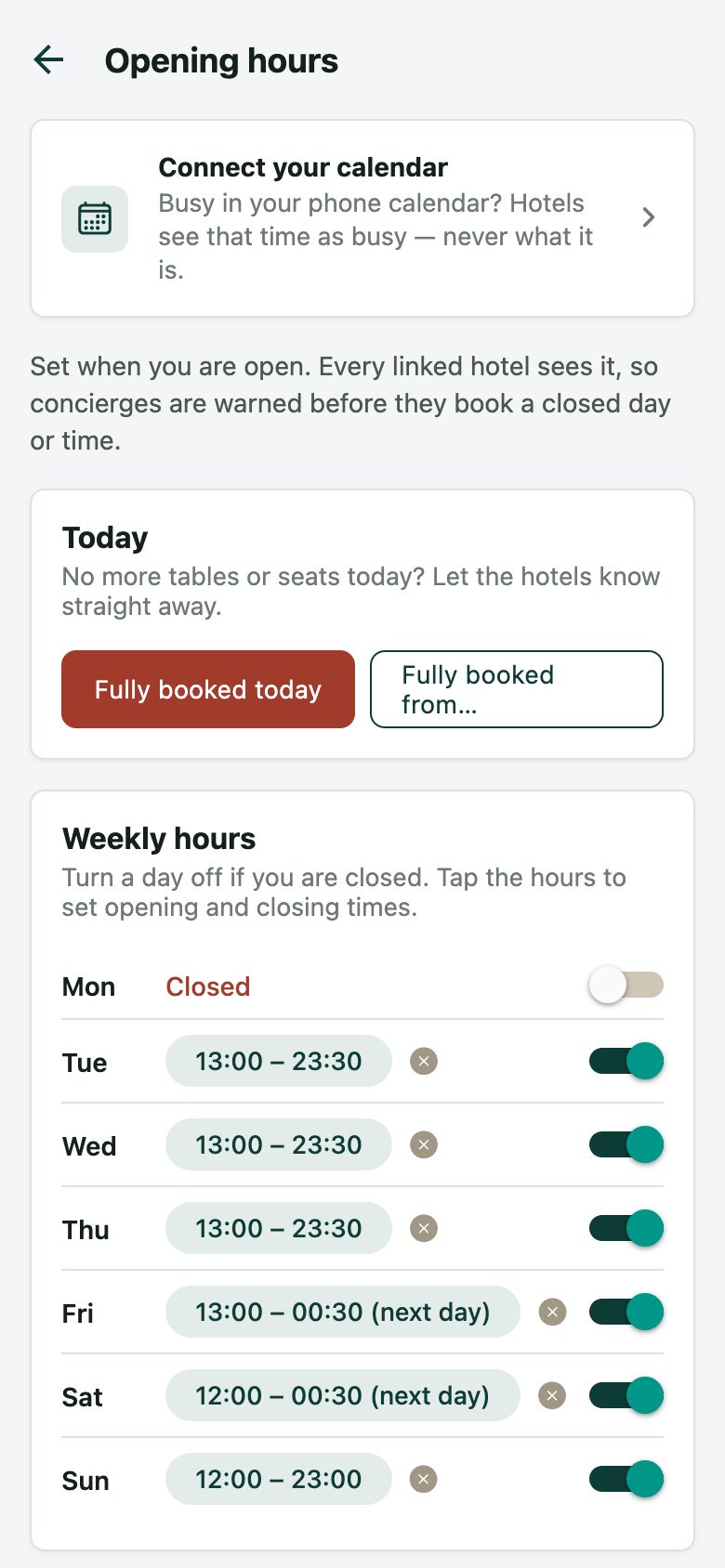
Money

And more
Go-live checklist
Tick each item when it is done. Your ticks are saved in this browser, so you can come back later.
You are ready to go live. Your desk can start taking real bookings. Welcome aboard!
Help and FAQ
A partner says they didn't get the booking email
- Check the partner's Email Address on Partners › Edit.
- Ask them to look in spam.
- Open the booking and click Resend partner email.
- Check that Partner Booking Request is on in Settings›Emails.
The partner can't answer by email: the link has expired
- Links work once and for 48 hours. Call the partner and use Confirm Appointment on the booking, or resend the partner email.
A concierge forgot their password
- Go to Staff Management›Concierge Staff, click Edit on the concierge and set a new password.
The commission looks wrong
- Check the partner's Default Commission Rate and the product's pricing (step 6).
- For a completed booking, use Edit costs. Every change is kept in Bookings›Cost Edits.
I deleted a booking by mistake
- Managers find it in Bookings›Deleted Appointments.
A menu item from this guide is missing
- Some sections are for managers only, and some features are switched on per hotel. Ask the Concierge360 team.
How do I contact support?
- Click Support at the bottom of any page, or email apps@dot360.io.